
Quick answer: In LXP Reporting, open the Report Packs tab and click Create a report. Choose a report type, pick your columns and filters, then save it in a report pack, which you can export, share or schedule.
Build the report
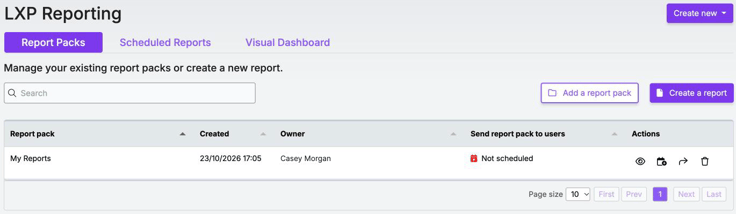
- In the menu (top right), search for LXP Reporting and open it.
- On the Report Packs tab, click Create a report on the right.
- Under I want to create a report related to, choose the type: Enrolments, Courses, Instructor Led Training, Policies, Quick Quizzes or Risk Assessments.
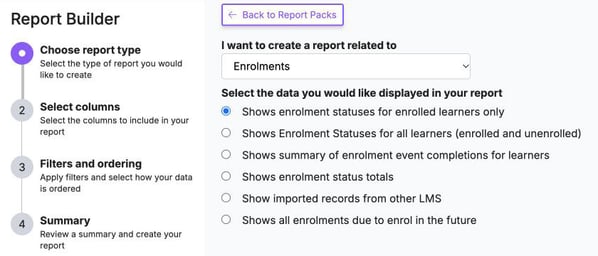
- Under Select the data you would like displayed in your report, choose one option and click Continue.
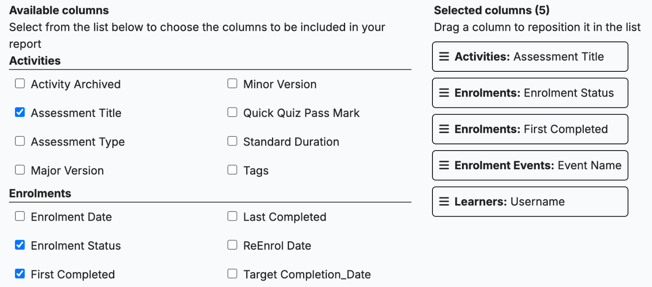
- Choose your columns from Available columns. Remove preselected ones you don't need and drag the rest into order under Selected columns.
- Under Filter by, choose a field, then IS or IS NOT, then a value, and click Add filter. Add filters if you only want one course or one department.
- To sort the results, use Order by and click Add ordering.
- To check your choices first, click Show report preview.
- Check the summary and click Create Report.
Tip: Reports start with active learners only. To include deactivated learners, add the Learner Active filter and choose both Yes and No.
Save the report in a pack
A report pack holds one or more reports. Packs are what you share, download or schedule, so save every report in one.
- Click Save to a report pack.
- Give the report a title and choose an existing pack or create a new one.
- Click Save.
Run and download the report
- On the Report Packs tab, click the eye icon on the pack's row.
- On the pack page, click Export all to download the pack's reports.
A "Preparing your export" message shows while the file is built.
To move or copy a report to another pack, use Move to pack or Copy to pack. Move only lists packs you own.
Share a pack or send it on a schedule
- To give colleagues a pack, click the share arrow in the pack's Actions column and choose the users. It then appears in their packs.
- To email a pack regularly, see Scheduling a report
For a quick view of completions and compliance, open the Compliance Report. See Checking who has completed training
Something isn't working?
Some events are missing from my report
Check the Event Hidden and Event Currently Active filters, and the columns of the same names, to see which events are hidden or ended.
A learner I expected isn't in the report
Reports include active learners only. To include deactivated learners, add the Learner Active filter and choose both Yes and No.
Each learner appears on several rows
Remove the Module Status column. Enrolment Status gives one row per learner, while Module Status gives a row for each attempt.
I can't find a completion date
Check First Completed is under Selected columns. If a learner repeats a course within one enrolment, Last Completed shows their most recent completion.
I can't see LXP Reporting
Ask support to check your access.
Related articles: Scheduling a report · Using the Visual Dashboard