
Quick answer: For a quick view of completions and compliance, open the Compliance Report.
See how compliant everyone is
- In the menu (top right), search for Compliance Reporting and open it.
- Under View compliance by, choose Activity, Code or Learner.
- Set any filters and click Apply Filters. Click Download if you need a copy.
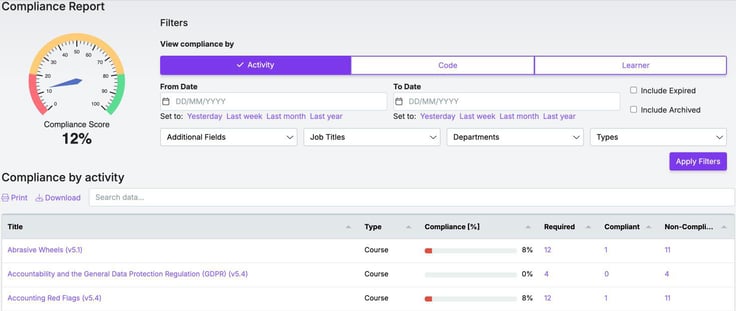
Note: Deactivated learners never appear in the Compliance Report. Expired and hidden events only show if you tick Include Expired or Include Hidden.
See who has completed a course
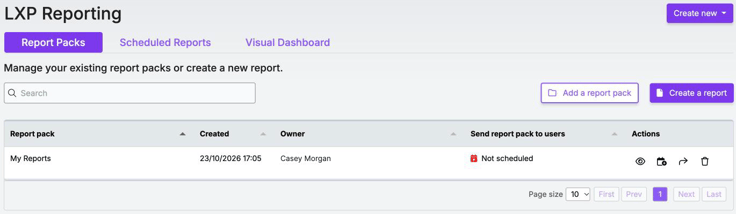
- Search the menu for LXP Reporting and open it.
- On the Report Packs tab, click Create a report.
- Choose what to report on, such as Courses, Policies or Risk Assessments, pick a report and click Continue.
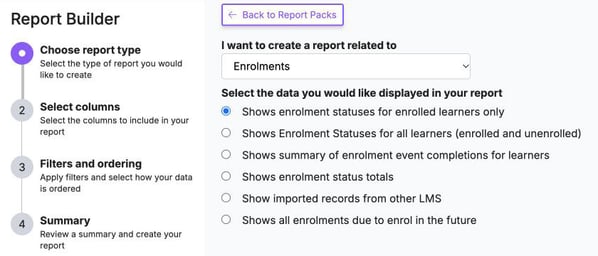
- Choose your columns, such as First Completed for the completion date, and add filters if you want very specific reporting such as on one course only or a certain department.
- Run the report and export it to Excel.
Tip: To include deactivated learners, add the Learner Active filter and choose both Yes and No.
Want it emailed to you regularly? See Scheduling a report
Something isn't working?
Some events are missing from my LXP report
Hidden and expired events are left out unless you choose Include Hidden or Include Expired. They're two separate options.
An event is missing from the Compliance Report
It's usually hidden or expired, so tick the boxes in the Note above. Still missing? Contact support.
The list is longer than the number I clicked
Clicking a number lists every outstanding enrolment for that course, including learners who are compliant through another event.
I can't see LXP Reporting
Ask support to check your access.
A manager's percentage looks wrong
It covers everyone they're set to see, not their own training.
Related articles: Removing a learner from an enrolment event · Adding and enrolling a new learner