
Quick answer: Open the menu (top right) and search for Create an enrolment event. Set the dates, choose the training and the learners, then create the event. The training then appears on each learner's home page.
Set the details
- Search the menu for Create an enrolment event and open it.
- Enter a Title. Each event needs its own unique title.
- Set a Start Date. If you leave it blank, or choose today or an earlier date, the event starts as soon as you create it.
- If the event should close, set an End Date. To set it quickly, use Set To to choose 6 months, 1 year or 3 years after the start date. Once the end date passes, learners can no longer launch and complete the training.
- If learners should finish within a set time of being enrolled, set Target Completion Within. Learners see the due date next to each course under Activities on their home page, and you can include it in email templates to further inform learners of when the training should be completed by.
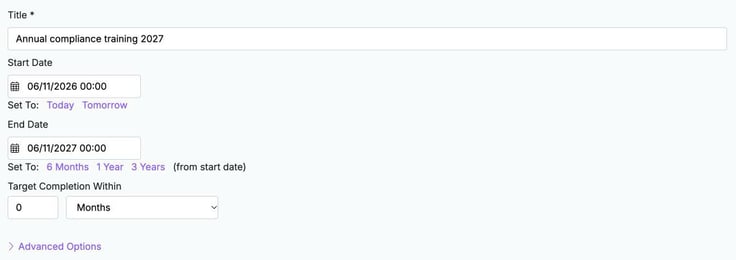
- Click Continue.
Note: Once an event is live, you can't change its Start Date. When the End Date passes, the event closes and is removed from learners' home pages, but their training records are kept.
Click Advanced Options for more settings, including:
- Compliance Code: filled in with the event title by default, so the event appears in Compliance Reporting. To leave the event out of that report, clear the field.
- Re-enrol Learners: automatically re-enrols learners after a set time based on their enrolment date or the last completion date.
- Allow learners to self-enrol: lets learners enrol themselves, but you can no longer add learners to the event from the event itself.
- Group event activities: shows all the event's activities under one tile on the learner's home page.
Select the activities
- Search for the courses, policies or other activities you need, or click Show filters to narrow the list by the activity type.
- Click each activity to select it. You can add as many activities, of as many types, as you need.
- To check what you've chosen, open the Selected list at the bottom.
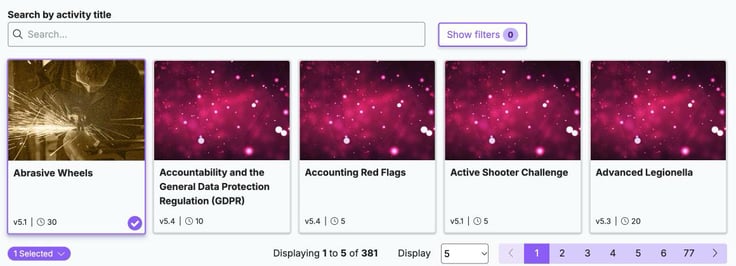
- Click Continue.
Add learners to the event
- Choose how to add learners:
- Manual: tick each learner you want to enrol.
- Rules: enrol learners automatically. See Enrolling learners automatically with rules
- Add Learners Later: create the event now and add learners later.
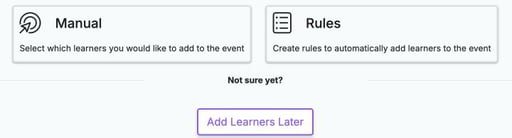
- Click Continue.
Create the event
- Check the Summary. Click Back to change anything.
- Click Create Event.
Important: Learners you add manually are enrolled when the event starts. If the Start Date is blank or a date in the past, learners are enrolled as soon as you create the event. If your organisation sends enrolment emails, they're sent at the event's start time (UK time). You can't resend them from the event.
Something isn't working?
A course I need isn't in the list
Check the course is published from the portal. Send support an email to check.
I want to add a course to a live event
If you add an activity to an event that's already running, everyone on the event is given it as a new activity to complete. It shows as outstanding for them until they complete it. If you don't want existing learners to do it, put the activity in a new event instead. Whether learners get an email about the new activity depends on how your enrolment emails are set up:
- Emails set up per course: learners get an enrolment email for the new activity.
- Emails set up per event: learners already on the event don't get an enrolment email for the new activity, so let them know about it yourself or set up a new email to trigger per course before you enrol.
Related articles: Enrolling learners automatically with rules · Adding and enrolling a new learner · Removing a learner from an enrolment event