
Quick answer: On the Learners page, click the pencil next to the learner, make your changes and click Save. To edit several learners at once, tick them and click Manage Selected.
Edit one learner
- In the menu (top right), search for Learners and open it.
- Find the learner and click the pencil on their row.
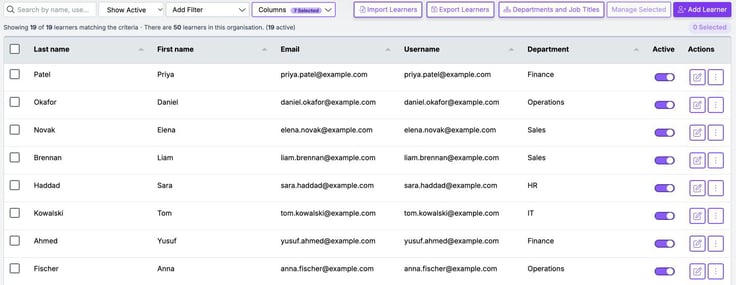
- Change what you need, such as their name, email, username, department, job title or manager email.
- Click Save.
Note: Changing someone's department doesn't move their training or their manager. Update their Manager Email yourself. Overnight, they're added to events whose rules match the new department. They stay on the old ones unless those events have Allow Rules to Un-enrol ticked.
Edit several learners at once
- On the Learners page, tick the learners you want to change.
- Click Manage Selected.
- Choose what to change, for example department and job title, manager, language or password, and save.
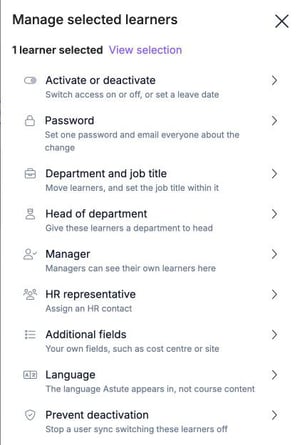
Note: Job titles belong to a department, so moving learners to a new department resets their job title unless you pick one.
Deactivate a learner
Turn off the Active toggle on their row. It saves straight away.
To deactivate several learners, or to do it on a set date:
- Tick the learners and click Manage Selected.
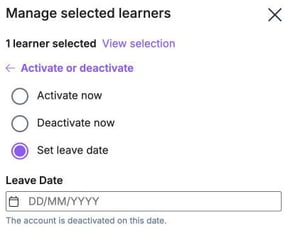
- Choose Activate or deactivate.
- Choose Deactivate now, or Set leave date and pick the date. Then click Save.
Deactivated learners keep all their records. They just can't log in.
Something isn't working?
My changes won't save
Check for a required additional field that's empty. It has to be filled in before the learner can be saved.
My changes were overwritten
If your learners are added to Astute from your HR system or through a user sync, the details the sync controls are overwritten at the next sync. Your HR system is the source of truth, so make those changes there and they'll be copied to Astute automatically.
The learner can't log in after an email change
If your organisation signs in with single sign-on (SSO), the email may also need changing in your own sign-in system. Ask your IT team.
Related articles: Importing learners from a file · A learner can't log in