
Quick answer: A rule enrols every learner whose details match, such as everyone in a department. It also keeps enrolling new learners who match later. You set up rules at the Add Learners step of an enrolment event.
Add rules to an event
- Open the rules:
- New event: on the Add Learners step of Creating an enrolment event, click Rules.
- Existing event: open the event and select the Rules tile.
- Choose a field, such as Department, Job Title, Language or Start Date.
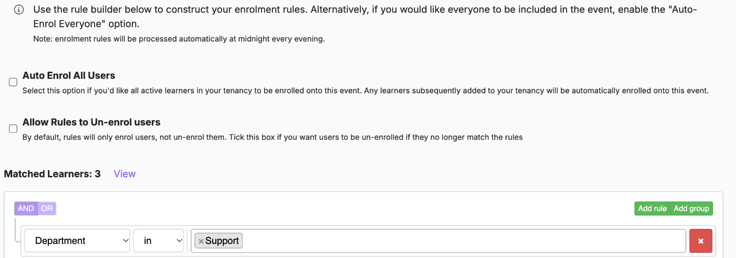
- Choose in or not in, then choose the values. For Start Date, choose a date option instead.
- To add another condition, click Add rule.
- Choose AND if learners must match every rule, or OR if they only need to match one.
- Check that Matched Learners shows the number you expect, then click Continue.
To use both AND and OR in one event, click Add group.
Use rules to enrol new starters only
To enrol only new starters, base your rule on one of these fields. That way the rule won't pick up everyone who's already in Astute.
- Learner started: matches learners whose Start Date was more than, or less than, a set number of days, weeks or months ago.
- Date added: works the same way, but uses the date the learner was added to Astute. Use it if your learners don't have a Start Date.
Note: A rule set to under stops matching a learner once they've been there longer than the time you set. For example, a rule for learners who started under 30 days ago stops matching them on day 31. If Allow Rules to Un-enrol users is ticked, those learners are then removed from the event. For a new starters event, leave Allow Rules to Un-enrol users unticked.
Choose additional options
- Auto Enrol All Users: enrols every active learner, and anyone added later. If you untick it later, learners who are already enrolled stay on the event.
- Allow Rules to Un-enrol users: removes learners from the event when they stop matching the rules. If it's unticked, rules only ever add learners.
- Previous LMS Records: choose what happens to learners who have a training record from your old system:
- Keep current schedule: they're enrolled when their record reaches its expiry date.
- Enrol earlier: they're enrolled as soon as they match the rules, without waiting for their record to expire.
Understand when rules run
Rules run every night at midnight, so a learner who matches the rules today is enrolled overnight.
Change the rules on an existing event
- Open the event and select the Rules tile.
- Make your changes, then click Confirm Changes.
- Check how many learners will be enrolled and un-enrolled.
- Click to confirm.
The new rules run at midnight. To run them straight away, click Process Rules.
Important: If Allow Rules to Un-enrol users is ticked, rules also remove learners who don't match, including learners you added by hand or from Previous LMS Records. If you delete all the rules while it's ticked, everyone is removed from the event.
See what happens when a learner changes department
When a learner moves to a new department, they're enrolled on any events whose rules match their new department. They stay on their old events, unless an event has Allow Rules to Un-enrol users ticked.
Something isn't working?
A learner wasn't enrolled
Rules run overnight, so check again the next day. If the learner still isn't enrolled, check that their details match the rules:
- A learner with no department or job title won't match a rule for those fields.
- A learner with no Start Date won't match a Learner started rule.
- Rules don't run on an event that's hidden or past its end date.
Too many learners were enrolled
Check whether the rules use OR where you meant AND, and fix them. Then contact support with the event title and a screenshot of the rules.
A learner I removed came back
They still match the event's rules, so the next run adds them again. A rule can't leave out one person, so add an extra rule they won't match. See Removing a learner from an enrolment event
Related articles: Creating an enrolment event · Removing a learner from an enrolment event · Editing a learner's details