
Quick answer: On the Learners page, click Import Learners, fill in the template and drag it in. Check the review screen, then click Import.
Import your file
Important: You can't undo an import. To keep a copy of your learners first, click Export Learners on the Learners page.
- In the menu (top right), search for Learners and open it.
- Click Import Learners, then Download template.
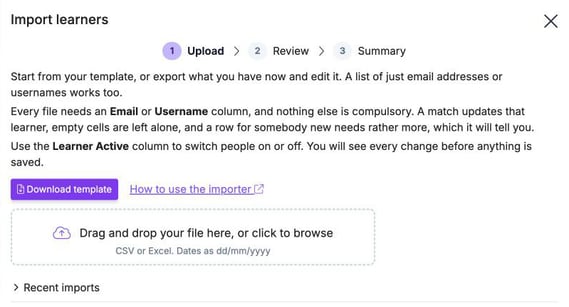
- Fill in one row per learner. New learners need an email, username, first name, last name, password, department, job title and language.
- Drag your file into the importer and click Next. CSV or Excel both work. Write dates as day/month/year.
- Check the review screen. Every change is listed, and nothing is saved until you import.
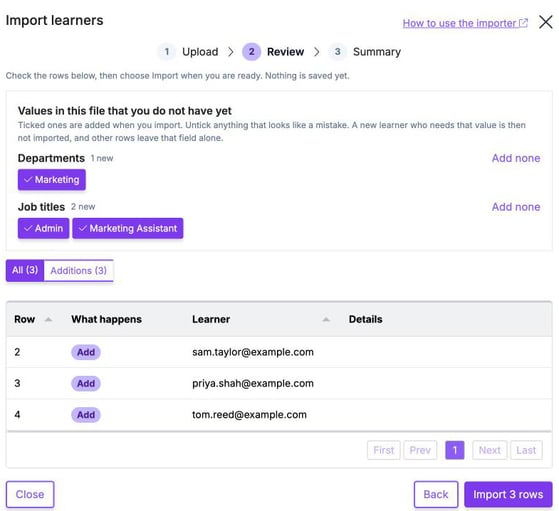
- Click Import (the button shows how many rows) and keep the page open until it finishes.
- To keep a copy of what changed, click Download report.
Update learners who are already in Astute
To update learners already in Astute, an email or username is enough. An empty cell keeps what's already there, and learners who aren't in your file aren't touched. You can upload the same file again: anything already up to date is left alone.
Answer any questions from the importer
The importer only asks these if your file needs them.
- A column it doesn't recognise: pick what it should be, or Leave this column out.
- A department or job title you don't have yet: it's added unless you untick it, so untick anything spelled wrong.
- Learners in your file who are deactivated: choose Leave them as they are or Switch them back on. Their details update either way.
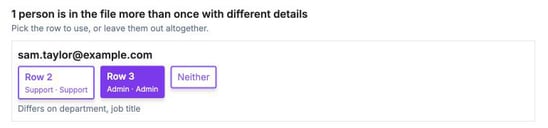
- The same person twice: pick which row to use, or Neither to leave them out.
Change managers, emails or usernames
- To remove someone's manager, type "none" in Manager email. A blank cell keeps their current manager.
- To change emails or usernames, change only one of them in each upload. To change both, upload the emails first, then the usernames.
- To set a head of department, use the Learners page. You can't do it in a file.
Deactivate learners who have left
- Add a Learner Active column next to the email or username column.
- Put "N" for anyone you want to deactivate. To reactivate someone, put "Y".
- Import the file as above.
Deactivated learners keep all their records. They just can't log in.
Something isn't working?
Some rows didn't import
The importer tells you why for each one. Fix them and upload just those rows again.
It won't accept a password
It must follow your organisation's password rules. The message says what's missing.
Accented names look wrong
Save your file as CSV UTF-8 and upload it again.
Someone wasn't deactivated
They have Prevent Deactivation on. Add a Prevent Deactivation column and put "No" in it. If your learners come from your HR system, deactivate them there too, or the next sync reactivates them.
Someone has lost their manager
Their manager was deactivated. Set a new one on the Learners page.
I can't see "Import Learners"
Importing needs full learner management rights. Ask support to check your access.
Related articles: Adding and enrolling a new learner · Editing a learner's details