
Quick answer: Create an enrolment event with Allow learners to self-enrol ticked. Its courses then show in the Self-enrol section of the home page for learners who can see the event, and they click Enrol to join.
Set up a self-enrol event
- Create an enrolment event with the courses you want to offer. See Creating an enrolment event
- In the event's Details, open Advanced Options.
- Tick Allow learners to self-enrol.
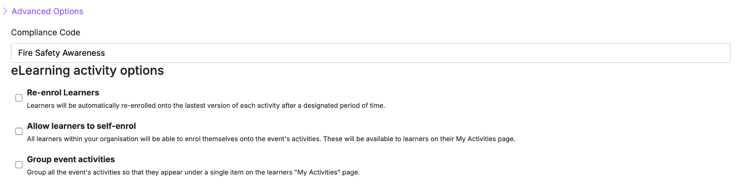
- For optional training, clear the Compliance Code, so the event stays out of Compliance Reporting.
- Save the event.
Choose who can see it
A self-enrol event can be limited to some people. Existing self-enrol events stay open to everyone until changed.
- Open Who can see it. It's on the third page of the event wizard, and a tile on the event.
- Choose one:
- Everyone
- Managers and department heads
- People by department, job title or additional field
Only those learners see the event and can enrol. Saving this never enrols or removes anyone.
Group courses under one tile
Many self-enrol courses can crowd the home page.
- In Advanced Options, tick Group event activities to show them all under one tile.
Note: A learner who enrols on a grouped tile is enrolled on every course in it, so only group courses meant for the same people.
See what learners see
- Open your own home page and find the Self-enrol section. Learners who can see the event see the same section.
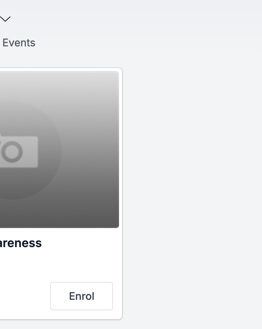
Learners click Enrol on a course. It then joins their activities, ready to start.
Once a learner enrols, Astute chases them by email for every activity in the event, like any other enrolment. See Managing chaser and trigger emails
Choose self-enrol or the Catalogue
The Catalogue is a separate optional page where learners browse and enrol on courses. Courses learners pick there don't count in Compliance Reporting. Courses in a self-enrol event do, unless the Compliance Code was cleared. Training learners must complete belongs in a normal event, not a self-enrol one.
Something isn't working?
The "Self-enrol" section has gone
It only shows when the learner can see at least one self-enrol event. Check Who can see it on the event.
A course is with the learner's other activities instead of under "Self-enrol"
The course moves there once a learner enrols. If it was there before, check the event has Allow learners to self-enrol ticked. Without it, the course is assigned to the learners on the event.
Self-enrol courses are lowering my compliance score
Clear the Compliance Code on the event. See Why is an event or learner missing from Compliance Reporting?
I want only one team to see a course
Use Who can see it on the self-enrol event. If the team must take the course, create a normal event and add them as its learners instead. See Creating an enrolment event
Replaced courses still show for learners
If they come from the Catalogue, remove them in Catalogue Settings. See Choosing which courses show in the Catalogue
Related articles: Creating an enrolment event · Why is an event or learner missing from Compliance Reporting? · Managing chaser and trigger emails