
Quick answer: A trigger email goes out when something happens, such as a learner being enrolled. A chaser email reminds learners who haven't started, completed or passed an activity, and repeats on a schedule. Set up both in Email Management.
Open the emails
To open Email Management, either:
- Open the menu (top right), search for Email Management and open it
- Open the menu (top right) and select Organisation > Email Management
- Open the Trigger emails or Chaser emails tab. Each lists the emails already set up.
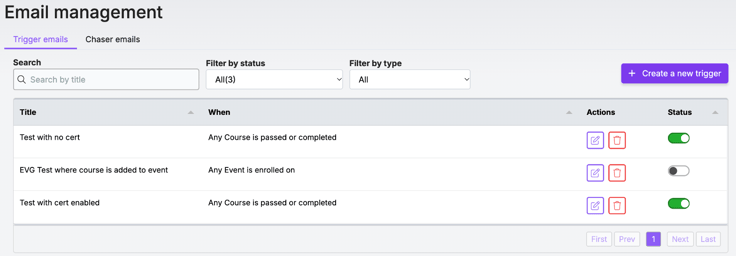
Edit or turn off an email
- Click the pencil icon next to the email to change its recipients or wording.
- To stop it being sent, turn off its Status toggle.
Important: Editing a chaser, or turning an old one back on, emails everyone it covers at its next run.
Choose who gets them and what they say
- In Recipients, add the learner, their line manager, their HR representative or a custom email address.
- In the Body, add merge fields to fill in details such as the learner's first name.
Add a trigger email
- On the Trigger emails tab, click Create a new trigger.
- Enter a Trigger Title and choose what sends it under Send email when.
- Turn All courses on (or All event groups for an event trigger) for everything, or leave it off and pick which. Click Continue.
- Choose the Recipients, then write the Subject and Body.
- Check the Summary and click Save email.
Note: Learners enrolled before a trigger existed don't get its email. A chaser still reaches anyone who matches it.
Add a chaser email
- On the Chaser emails tab, click Create a new chaser.
- Enter a Title and choose the Activity Type. Turn All activities on for everything, or leave it off and pick which. Click Continue.
- Under Frequency and time, set Send chaser every, then the Start date and Start time.
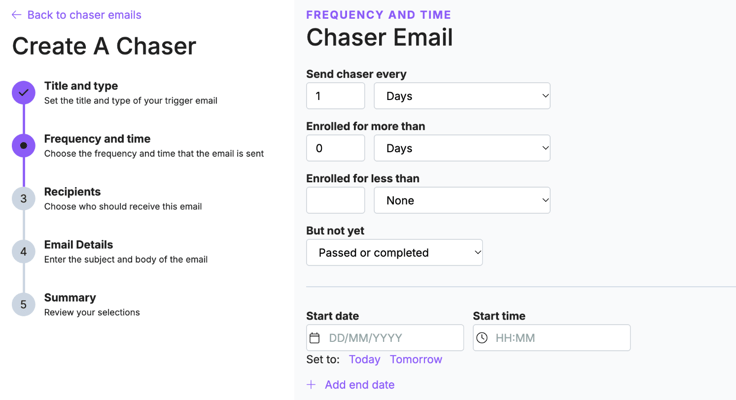
- To stop it automatically, set an End date.
- Choose the Recipients. You can also add CC and BCC.
- Write the email, then click Save email.
For Instructor-led Training emails, see How do I manage Instructor-led Training emails?
Something isn't working?
A learner keeps getting reminders after completing
Chasers go out while any enrolment is still incomplete. Check:
- The email is set to cover all courses or activities, not selected ones
- They don't have a second account
- They aren't on another event, or another copy of the course, that is still incomplete
- The event isn't hidden. Hiding an event doesn't stop its chasers
- They're still on an older event
If the cause isn't there, contact support with the learner's email, course name and a screenshot of the email.
A learner who left or was deactivated still gets reminders
Deactivated learners don't get chasers or trigger emails. Check the learner is deactivated.
A learner didn't get an email
Check:
- The email is switched on and covers their course or event
- Ask them to check their spam folder
- Your IT team allows emails from scheduler@astute-elearning.com, which sends chaser and reminder emails
- Their email address on Astute is right
- The Emails tab shows it was sent: on Learners, click the three dots on their row, then View Progress
Related articles: Creating an enrolment event · Checking a learner's progress