
Quick answer: To remove a learner who has left, deactivate them on the Learners page by toggling the Active bar to off. You can do it straight away, or set a Leave Date so it happens automatically on that day. A deactivated learner can't log in and won't get reminders, but all their training records are kept. If you use a user sync: first remove the learner from the sync source, or change their status there (for example in Azure AD, SCIM or your HR system). Otherwise the next sync will reactivate or re-create them.
Choose what to do
- Deactivate now: for someone who is leaving or on leave today. If they will be removed from your user sync then no action is required.
- Leave Date: for someone with a known last day. Astute deactivates them for you.
- Delete: only to erase a learner and their records for good. Support does it on request.
Deactivated learners keep their records, and you can still see their certificates. They drop out of Compliance Reporting. To report on them, use an LXP report with the Learner Active filter set to both Yes and No. See Building an LXP report
Deactivate a learner now
- In the menu (top right), search for Learners and open it.
- Find the learner and turn off the Active toggle on their row. It saves straight away.
To deactivate several at once, see Editing a learner's details To do it from a file, see Importing learners from a file
Deactivate a learner on a set date
- On the Learners page, click the pencil on their row.
- In the Edit Learner panel, scroll to Organisational Details and enter the Leave Date.
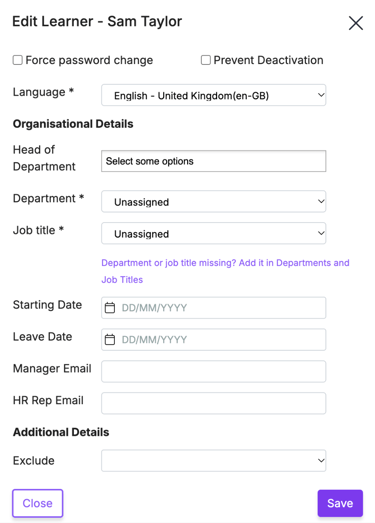
- Click Save.
Astute deactivates the learner at midnight at the start of the date you enter. If they need access on their last day, enter the day after.
Reactivate a learner
- On the Learners page, change the list from Show Active to Show Inactive.
- Find the learner and turn the Active toggle back on.
- If they have a Leave Date that has passed, click the pencil, clear the date and click Save. Otherwise they are deactivated again overnight.
Tip: The learner's previous passes are kept. When you reactivate a learner on the Learners page, Astute sends their welcome email again and adds them to any events that enrol learners automatically, unless they're already in them.
Permanently delete a learner
Contact support with the learner's username. Support will ask you to confirm first.
Warning: Deleting a learner permanently removes their training records and everything linked to them. This can't be undone. If you only need to stop them logging in, deactivate them instead.
Something isn't working?
Why do learners keep becoming inactive?
Check their Leave Date. A date that has passed deactivates them overnight, so clear it.
Why do learners keep becoming active again?
If your learners are added to Astute from your HR system or through a user sync, deactivate them there too. The next sync can switch them back on while they are still in the synced group.
Why can't I find a learner?
Change the list to Show Inactive.
Why does an active learner keep getting reminders?
Chaser emails go to everyone on the event, so deactivate them or take them off the event. See Removing a learner from an enrolment event
Why am I being asked to choose a new manager?
The learner manages other learners. Choose someone to take over as manager of their team so the team still has a manager.
Related articles: Editing a learner's details · Why is an event or learner missing from Compliance Reporting? · A learner can't log in