
Quick answer: Open the event, click Learners, tick the learner and click Remove Selected. Then confirm and click Action Changes.
Remove the learner
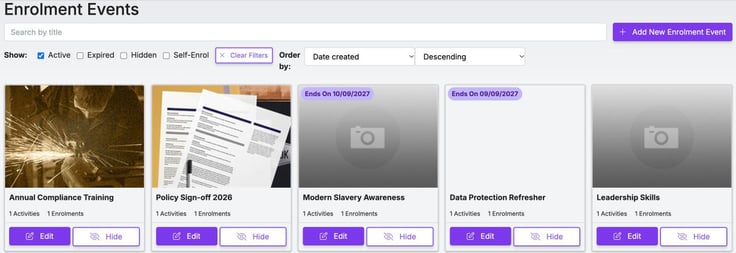
- In the menu (top right), search for Enrolment events, find the event, click Edit.
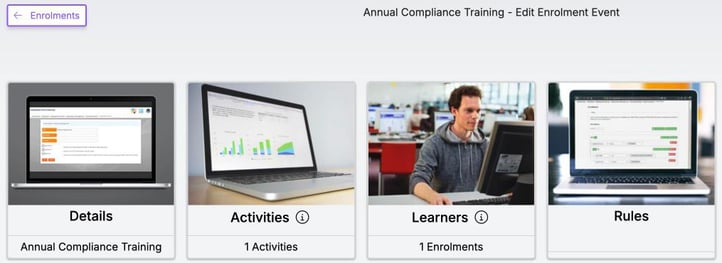
- Click Learners.
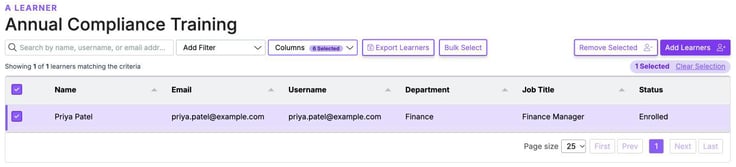
- Tick the learner, click Remove Selected and confirm in the pop-up.
- Scroll to the bottom of the list, click Confirm Changes, then Action Changes.
Important: This takes the learner off every activity in that event but the completions are still available in LXP reporting. Their certificates are kept.
Tip: Only want to stop reminders for one person? Removing them like this is the way to do it. Don't change the event's End Date, because that ends the event for everyone on it.
Something isn't working?
The learner came back the next day
The event enrols learners automatically with rules, and they still match. A rule can't leave out one person, so add an extra rule they won't match, such as an additional field. See Enrolling learners automatically with rules If the event is set to enrol everyone, its rules don't apply, so contact support.
I can't see "Remove Selected"
Removing learners needs the Manage Enrolments permission. Ask support to check your access.
A learner who finished is still getting reminders
Check with the learner that they have closed the course completely.
The learner has left or is on long-term leave
Deactivate them instead. They stop getting reminders and trigger emails, and their records are kept. If your learners come from your HR system, change it there too, or the next sync can reactivate them. See Editing a learner's details
Related articles: Adding and enrolling a new learner · Enrolling learners automatically with rules