
Quick answer: Open the Risk Task List from your home page or the menu (top right). Click a concern to read its suggested action. Then click Add Progress Note if it needs more work, or Set Resolution if it no longer needs action.
Open the Risk Task List
- On your home page, click View on the Risk Tasks tile.
- Or, in the menu (top right), search for Risk Task List and open it.
Choose how to view concerns
- Next to View tasks by, choose Individual or Concern.
- Individual lists each learner with their unresolved concerns split into high, medium and low.
- Concern lists each concern with how many learners raised it.
- To see only recent or specific concerns, use Raised in last, Assessment, Job Function or Department, then click Apply filters.
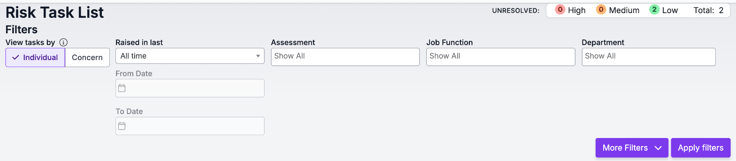
- Click a number to open the concerns behind it.
You can search, email, print or download the list, so you can share it with the people who need to act.
Review a concern
- Click a concern. A pop-up opens on Actions, where Suggested Action shows what the learner was told.
- Open History to see earlier actions, and Files to see documents the learner added.
- To read all of a learner's answers, click full_report above their concerns.
Close a concern
- If more steps are needed, click Add Progress Note, type your next steps and click Save. The status changes to In Progress.
- If it's no longer a concern, click Set Resolution.
- Choose Use suggested action as resolution, or Set final resolution and type how it was resolved.
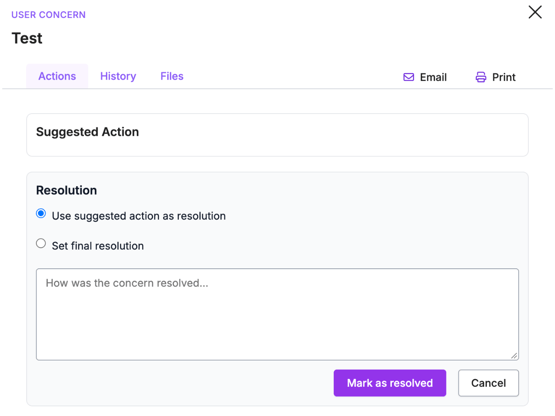
- Click Mark as resolved.
Tip: A trigger email can tell people when a concern is resolved.
Send managers a reminder
- In the menu, search for Schedule Risk Task List Reminders and open it.
- Set Raised in last, Repeat Every, Next due date and Execution Time.
- Under Recipients, tick Reminder? for each manager who should get the email, then click Save.
The email text is fixed. It only goes to people who have outstanding concerns.
Something isn't working?
A manager can't see the "Risk Tasks" tile
Check the learner has the manager's email in Manager Email. Then ask support to check the manager's Risk Task List access.
A manager sees too few concerns
My Direct Reports shows one level down. My Team shows everyone under them. Contact support to change it.
You want a report of completed assessments
Build an LXP report and choose Risk Assessments. See Building an LXP report
Related articles: Building an LXP report · Managing chaser and trigger emails