
Quick answer: In LXP Reporting, use the Scheduled Reports tab to send report packs to people by email on a regular schedule. You can only schedule a report after you've created and saved it.
Note: You schedule report packs, so build your report and save it in a pack first. See Checking who has completed training
Create a schedule
- In the menu (top right), search for LXP Reporting and open it.
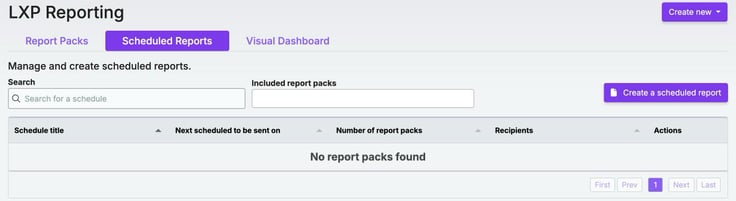
- Open the Scheduled Reports tab and click Create a scheduled report.
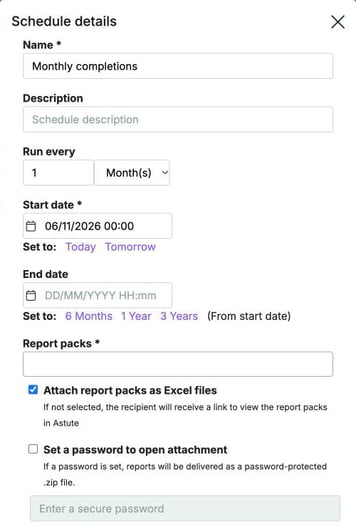
- Type a Name and, if you like, a Description.
- Under Run every, set how often it goes: a number of Day(s), Week(s), Month(s) or Year(s).
- Set a Start date. Add an End date if the schedule should stop.
- Choose the Report packs to send.
Choose who gets the report and how it's sent
You can send a scheduled report to every line manager or department head at once. Each one only gets the results for the people they manage, so you can set up one report instead of a separate one for each team. You can also schedule the report for someone who needs to see everyone, such as a compliance lead, so they get all completions across the organisation.
- Choose the Recipients:
- All Line Managers: each line manager gets a report on their own team.
- All Department Heads: each department head gets a report on their own department.
- Named people: the people you pick get the whole report, with everyone and all completions. Use this for anyone who needs the full picture.
- If you chose line managers or department heads, choose what they see:
- Only the people they manage (recommended): each person only sees results for their own team or department.
- Everything (same as an administrator): each person sees everyone and all completions.
Named people always get the whole report. To limit what they see, set the report's filters before you schedule it.
- To send the report packs as files, leave Attach report packs as Excel files ticked. If you untick it, people get a link to view the reports in Astute instead.
- To password-protect the attachment, tick Set a password to open attachment and enter a password. You can only do this if Attach report packs as Excel files is ticked.
- You can change the Email subject and Email body. If you leave them blank, the email uses the standard wording.
- Check the Recipients and Start date, then click Save.
With a password, the files arrive in a password-protected .zip file.
Important: The Start date fills in as today at 00:00, which has already passed. If you leave it, the first report goes to every recipient as soon as you click Save.
Something isn't working?
I can't see "LXP Reporting"
Ask support to check your access.
I want to schedule the "Compliance Report"
Compliance Reporting can't be scheduled. Build an LXP report with the information you need and schedule its pack.
I want to schedule the "Visual Dashboard"
Dashboards can't be scheduled. Download it as a PDF from the three dots at its top right.
A manager's report arrives empty
With Only the people they manage, the report is empty when none of their learners match its filters. Check their learners have them set as Manager. If that's right, ask support to check the manager's access.
The person who set up a schedule has left
Contact support to move their reports and schedules to a colleague.
Related articles: Checking who has completed training · Using the Visual Dashboard