
Quick answer: On an enrolment event, tick Re-enrol Learners under Advanced Options, choose Date Enrolled or Completion Date, and set how often. Each learner moves onto a new event on their own due date, with the activities set on the Reenrolment Activities tile.
Choose when learners are re-enrolled
The setting decides which date the timer counts from:
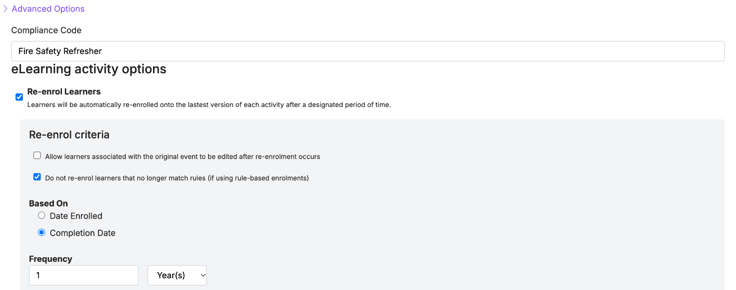
- Date Enrolled: Counts from the day the learner was first enrolled, even if they finished later.
- Completion Date: Counts from when the learner completed each activity, so activities move on different days. Activities never completed aren’t re-enrolled.
The frequency can be set in weeks, months or years.
- In the menu (top right), search for Enrolment Events, open it and select Edit on the event.
- Select Details, then Advanced Options.
- Tick Re-enrol Learners.
- Under Based On, choose Date Enrolled or Completion Date. Under Frequency, set how many weeks, months or years apart.
- Select Save Changes.
Choose what learners do next
Set this up before the first learner is due, so they move onto the right activities. Up to five admins with Manage Enrolments get reminder emails 2 months, 1 month, 1 week and 1 day before.
- On the event, select Edit, then the Reenrolment Activities tile.
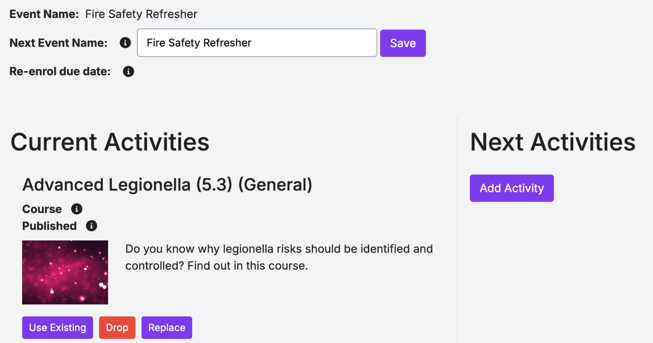
- Optional: change the Next Event Name and select Save next to it.
- For each activity, select Use Existing to keep it, Replace to swap it or Drop to leave it out.
- To add new training, select Add Activity.
Re-enrol Due Date shows when the new event will be created. Learners move across to it as each of them falls due. If nobody confirms the next activities, the event still re-enrols learners onto its current activities.
Reporting
- Earlier passes stay on the old enrolment and in LXP Reporting.
- A re-enrol on the new event gets its own pass date. The earlier date doesn’t carry over to it.
- To see who is due next, build an Enrolments report in LXP Reporting and choose Show all enrolments due to enrol in the future, then add the ReEnrol Date column to see each learner’s date.
- See Building an LXP report
Something isn't working?
A learner was re-enrolled earlier than expected
The event counts from Date Enrolled and they finished later. Click Edit on the event, then Details > Advanced Options, and change Based On to Completion Date. This applies to learners not yet re-enrolled.
One learner wasn't re-enrolled
Check:
- Their account is active. A deactivated learner isn't re-enrolled.
- The event isn't hidden. Hiding an event stops its re-enrolments.
- On Completion Date, they completed the activity.
A learner is outstanding in "Compliance Reporting" but has nothing on their home page
Contact support with the learner's username and the event title. Support can check for an older enrolment that never re-enrolled.
New starters get the refresher instead of the full course
Rules move to the new event when it re-enrols. Put the rules on a separate event for new starters, and leave the main event without rules. See Enrolling learners automatically with rules
I want someone to redo the training early
Add them to a separate event with the course. Adding them to the event that re-enrols before they're due leaves them at Pending. See Adding and enrolling a new learner
Related articles: Creating an enrolment event · Enrolling learners automatically with rules · Adding and enrolling a new learner