
Quick answer: In Policies, click Add Policy, attach your file or link and tick Self Certify? if learners must confirm they accept it. Then add the policy to an enrolment event.
Add the policy
- In the menu (top right), search for Policies and open it.
- Click Add Policy.
- Enter a Title. Add a Description if you want learners to see it on the policy tile.
- Choose how learners confirm it:
- Self Certify? ticked: learners open the policy, then tick a statement to say they understand and accept it. You can edit the statement.
- Self Certify? unticked: opening the policy is enough. Astute marks it Viewed, however briefly it was open.
- Under Policy Files, click Add New Policy File (Word, PDF or PowerPoint), Add New Policy URL or Add Document Library File.
- Click Save.
Tip: Only tick Self Certification File Allowed or Self Certification File Mandatory if learners must upload evidence, such as a signed form.
Give the policy to learners
- Create or open an enrolment event. See Creating an enrolment event
- Under Activities, click Show filters, filter to policies and select your policy.
- Add your learners, then create the event.
An event doesn't need a course: it can hold only policies. To give a policy to new starters later, use a separate event with a Learner started rule. See Enrolling learners automatically with rules
Swap in a new version of a policy
- In Policies, click the policy's tile to open it.
- Under Policy Files, click Add New Policy File, upload the new version and click Save. Older versions stay listed.
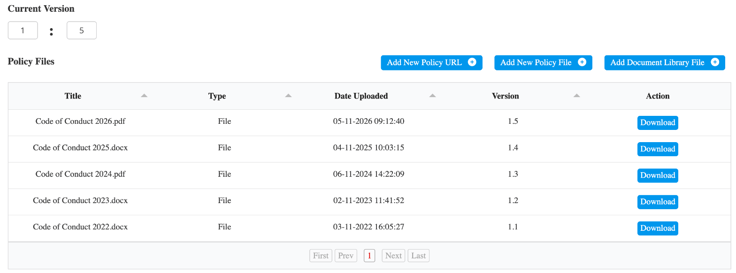
The new version only goes to learners enrolled after you add it. Everyone already enrolled keeps the version they were enrolled on, whether they've completed it or not.
To give learners who are already enrolled the new version, put them on a new enrolment event with the policy. That also records who completed which version.
Remove a policy from an event
- Search the menu for Enrolment events, find the event and click Edit.
- Click Activities, then click the bin icon on the policy.
- Click Remove Activity to confirm.
It stops being assigned in that event. It stays in Policies, and its data is kept.
See who has acknowledged it
Policies don't give their own certificate. To see who has completed one, build a report in LXP Reporting and choose Policies. See Building an LXP report
Something isn't working?
Learners were asked to complete a policy again
Ticking Self Certify? on a policy learners have already viewed asks them all to complete it again. Decide on Self Certify? before learners start.
A learner has viewed the policy but still shows as not complete
On a Self Certify? policy, they must also tick the statement. Ask them to open it again and tick it.
The policy link opens for some learners and not others
Check whether it's a link to your own system, such as SharePoint. It only opens for people who have access to it. Uploading the file to Astute avoids this.
I added a policy to a live event and compliance dropped
Everyone on the event gets it as a new item. It shows as outstanding until they complete it. To leave the current event alone, put the policy in a new event.
I want to mark policies complete for learners
Contact support. Clients can't do this from any Astute page.
Related articles: Creating an enrolment event · Checking who has completed training · Managing certificates