
Quick answer: In Courses, select Create New Course and name it. Select Add a module, then Upload File to add your SCORM 1.2 or xAPI .zip file, and select Save module. Set the release status to Published, then select Save course. To let learners take it, add it to an enrolment event.
Before you begin
- You need access to Manage Courses. If you can't create a course, ask support to check your access.
- Your file must be SCORM 1.2 or xAPI, saved as a .zip file. SCORM 2004 and AICC files don't work.
- Upload the .zip file itself. Check it isn't a zip inside another zip.
- An xAPI file needs an index.html inside it.
- PowerPoint, PDF and Word files can't be uploaded as courses. To use slides, export them as SCORM 1.2 from your authoring tool.
Create the course
- In the menu (top right), search for Courses and open it.
- Click Create New Course, enter the course name in Title and click Next.
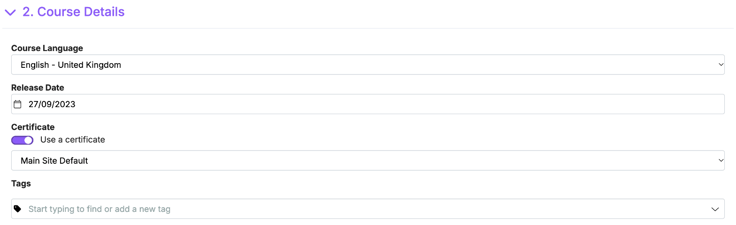
- Enter the course details:
- Course Language: the language of the course.
- Release Date: required before you can continue.
- Certificate: to give certificates, check Use a certificate is on and pick a template. See Managing certificates
- Tags: optional, to find the course more easily.
- Click Next.
- If you want, add a Tile image, shown on the learner's home page, and a Banner image, shown at the top. Click Next.
Add your file
- Click Add a module.
- Click Upload File and choose your .zip file. Once it's in, enter a Module title.

- When the file has uploaded, click Save module.
- To add more files, click Add a module and repeat. A file with several parts is split into modules for you.
- Click Next.
Tip: A course with several modules completes only once every module is done, so put optional material in a separate course.
Publish the course
- Set Release Status to Published, so the course is ready for learners to be enrolled.
- Click Save course. The course now shows on your Courses page.
Enrol Learners
- Add the course as an activity on an enrolment event, the same way as any other course. See Creating an enrolment event
Replace a module later
- Open the module and click Edit.
- Delete the file and upload the new one.
- Click Save once it shows as uploaded.
Learners part-way through it start again. Recorded completions stay.
Something isn't working?
The upload fails or never finishes
Check:
- The file is a .zip, with SCORM 1.2 or xAPI inside
- It isn't a zip inside a zip
- An xAPI file has an index.html
I can't create a course
Ask support to check your access to Manage Courses.
Related articles: Creating an enrolment event · Adding and enrolling a new learner