
Administrators can add new users to the system individually. This is typically done when a new employee joins the organisation or requires access to training.
Add a new user
- From the menu on the left side of the page, select Users, then click Add New User.
- Fill in the relevant user details (see field descriptions below).
- Choose one of the following options:
- Click Submit to create the user without enrolling them in any courses.
- Click Submit and Enrol to create the user and immediately assign courses.
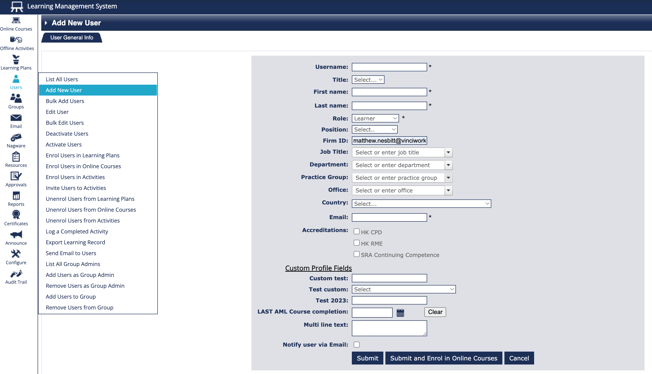
User fields explained
Username
Enter the user’s email address.
This will be used as the user’s login name and should be unique to each user.
Role
All standard users should be set to Learner.
The only other role available is Administrator, which provides additional permissions such as:
- Managing users
- Assigning courses
- Running reports
- Configuring system settings
Only assign the Administrator role to users who need to manage the system.
Firm ID
Enter a unique identifier for the user, such as:
- Employee ID
- Staff number
- HR reference number
This field is commonly used for reporting and system integration.
Job Title, Department, and other profile fields
These fields are used for reporting, filtering, and organising users.
It is recommended to provide as much information as possible to support accurate reporting and user management.
Accreditations
Select the relevant accreditation options if the user requires them.
For example:
- Tick SRA Continuing Competence if the user needs the Continuing Competency Module
- Tick HK CPD or HK RME if the user requires Hong Kong regulatory accreditation tracking
Only select accreditations that apply to the user.
Note that these options will only appear where SRA/HK compliance is enabled on your account. Please reach out to your Account Manager if you require this option, and don't see it.
Submit vs Submit and Enrol
When saving the new user, you will be asked how to proceed.
- Submit — Adds the user to the system without assigning any courses
- Submit and Enrol — Adds the user and immediately allows you to select courses to assign
Use Submit and Enrol if the user needs training straight away.