
Customers with a Professional licence can upload their own third-party SCORM content into the Learning Management System.
Important:
VinciWorks courses delivered through the Portal are automatically published to your LMS. There is no need to upload SCORM files for VinciWorks content.
This feature is intended for third-party authored courses only.
Before you start
Please ensure:
- Your course is packaged as a SCORM 1.2 file
- The file is provided as either a
.zipfile or animsmanifest.xmlfile - The course has been exported correctly from the authoring tool
If you are unsure whether your course is SCORM 1.2 compliant, your content provider or authoring tool documentation should confirm this.
Upload a SCORM course
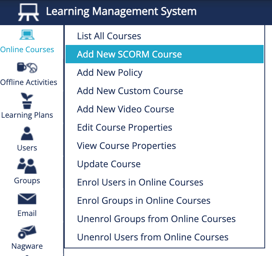
- From the menu on the left side of the page, select Online Courses, then click Add New SCORM course.
- Select the type of file you would like to upload (either a ZIP file or an imsmanifest.xml file).
- Click Select, locate your SCORM file on your computer, and upload it.
Configure course details
After the file has been uploaded, you will be prompted to enter additional course information. You can provide as much detail as needed, such as:
- Course title
- Description
- Category
- Duration
- Language
These details help learners identify the course within the system.
Set course access
Next to Course Access Type, select how learners will be able to access the course. This setting controls who can see the course and whether they can enrol themselves. The default setting is Private.
- Private (default) — Only learners enrolled by an administrator can access the course. The course will not appear in the Public Courses list.
- Protected — The course appears in the Public Courses list, but learners must be approved by an administrator before they can start the course.
- Public — The course appears in the Public Courses list and learners can enrol themselves immediately. This is typically used for optional learning.
If you are unsure which option to choose, we recommend leaving the course set to Private.
Set the pass mark
In the Pass Mark field, enter the percentage required for learners to pass the course.
For example:
- Entering 80 means learners must achieve 80% or higher to pass.
What happens next
After saving the course:
- The SCORM package will appear in your course list
- You can assign the course to learners or groups
- Progress and completion data will be tracked automatically through SCORM
Troubleshooting
If the course fails to upload, common causes include:
- The file is not SCORM 1.2 compliant
- The ZIP file structure is incorrect
- The
imsmanifest.xmlfile is missing - The file size exceeds system limits
If you encounter issues, please contact support and provide:
- The SCORM file
- The name of the authoring tool used
- A screenshot of the error message