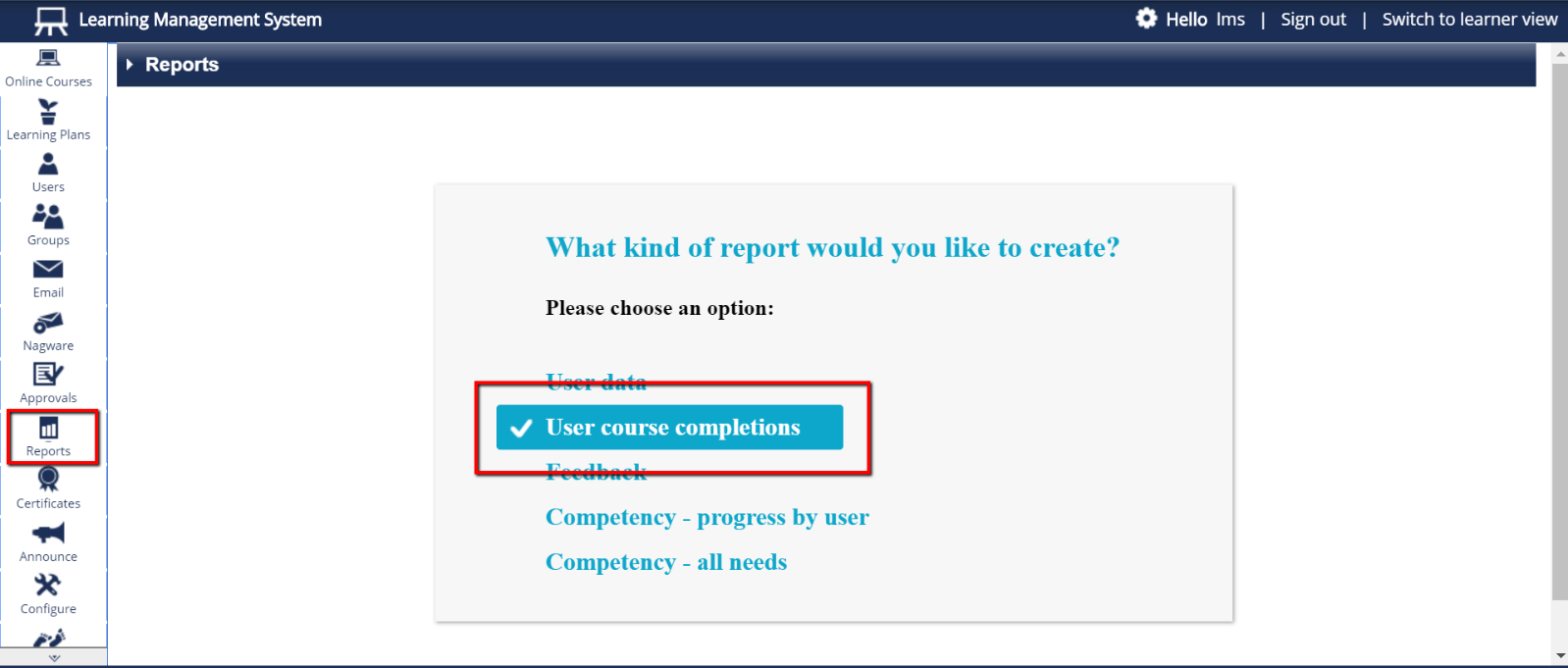
- From the menu on the left side of the page, click on the “Reports” icon. If you have never created a report before, select “User course completions” in the center of the page. If you have previously saved report templates and now see them listed, click “Create custom report” in the upper right hand corner and then click “User course completions”.
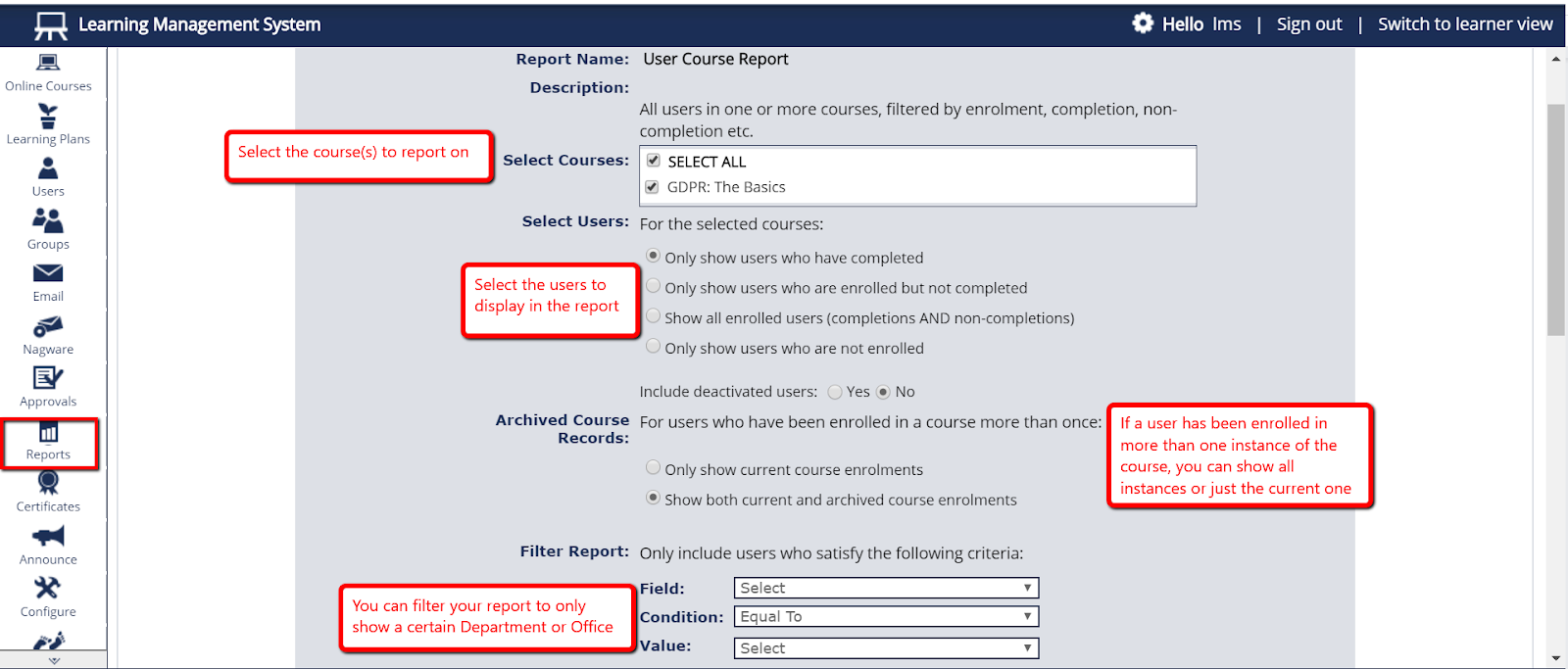
- In the new page that opens, you will be able to customise your report.
- Report Name - This is set by default to “User Course Report” but can be changed further down the page.
- Select Courses - By default, all of the courses are selected. To only report on one or a few, you can click the tick mark in the “Select All” box and none will be selected. You can now choose the specific course(s) to report on.
- Select Users - Select the users to display in the course. The options are:
- Only show users who have completed - This will list users who have been enrolled in the course(s) selected above and stand as Complete.
- Only show users who are enrolled but not completed - This will list users who have been enrolled in the course(s) selected above and stand as either Not Started or In Progress
- Show all enrolled users (completions AND non-completions) - This will list all users who have been enrolled in the course(s) selected above and stand as Not Started, In Progress, or Complete.
- Only show users who are not enrolled - This will show users who were not enrolled in the selected course(s) above.
- Archived Course Records - If a user has been enrolled in the same course more than once, the older enrolments are called “archived” and the most current enrolment is called “Current.”
- If you would like to see all instances of a particular course(s), you should select “Show both current and archived course enrolments”.
- If you do not wish to include archived course enrolments, you should choose “Only show current course enrolments”.
- Filter Report - This will allow you to filter users according to certain criteria. For example, if you wanted to see only users from the HR department in the London office (but none of your other offices), you could choose “Department Equal To Human Resources” and click Add. Then you will want to choose the condition of “and” and click Add next to that. Now you can add your second condition, which will be “Office Equal To London”.
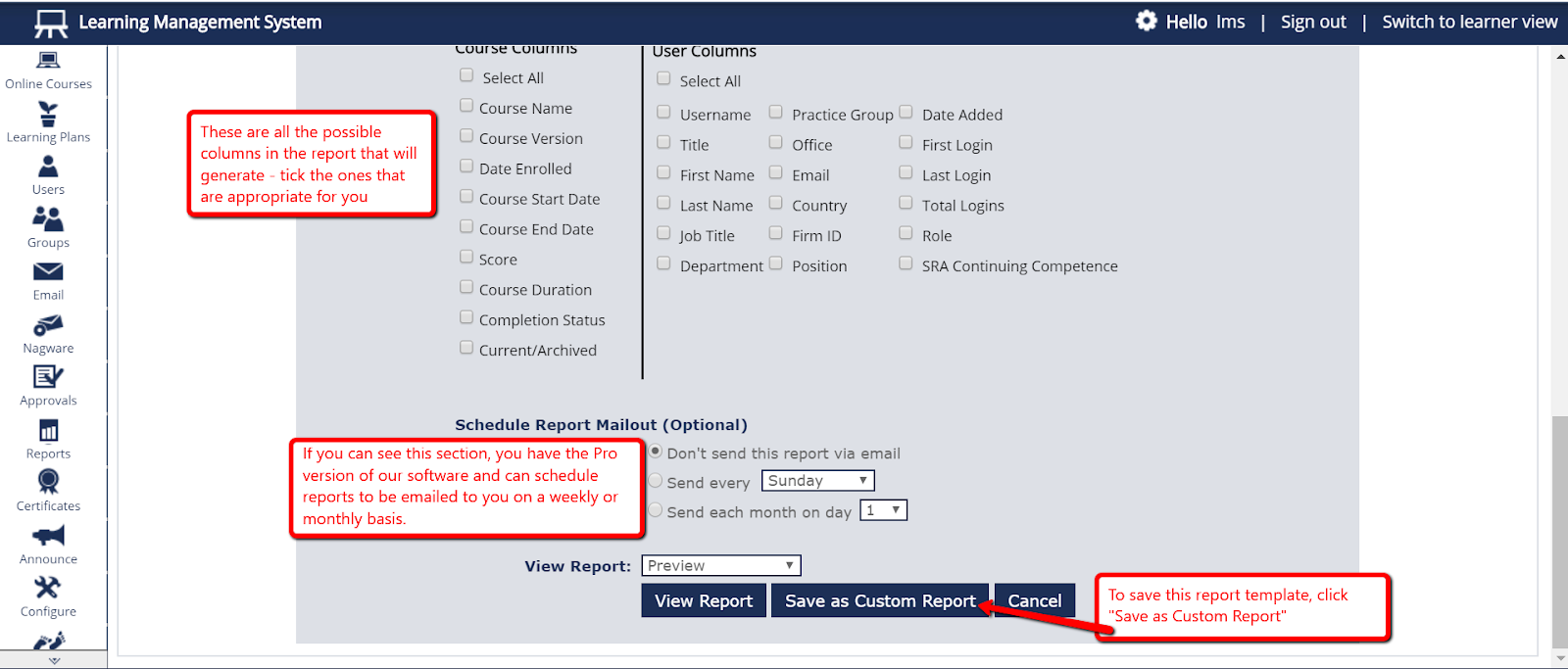
- You can select which Course information and what User information to include by ticking the relevant boxes under “Course Columns” and “User Columns”.
- If you would like to save this report as a template that you can pull as needed, click “Save as Custom Report.” Here you will be able to give the report a name you will remember; choose “Save for all Admins” so if you are out of the office, another system Admin will be able to pull the report if necessary.
- If you can see the text “Schedule Report Mailout (Optional)”, you can also have the report emailed to you or the relevant people on a weekly or monthly basis. When you click either of those options you can fill in the appropriate fields and when finished, click “Save as Custom Report”. Give the report a name you will remember and choose “Save for all Admins” so if you are out, another system Admin will be able to pull the report if necessary.