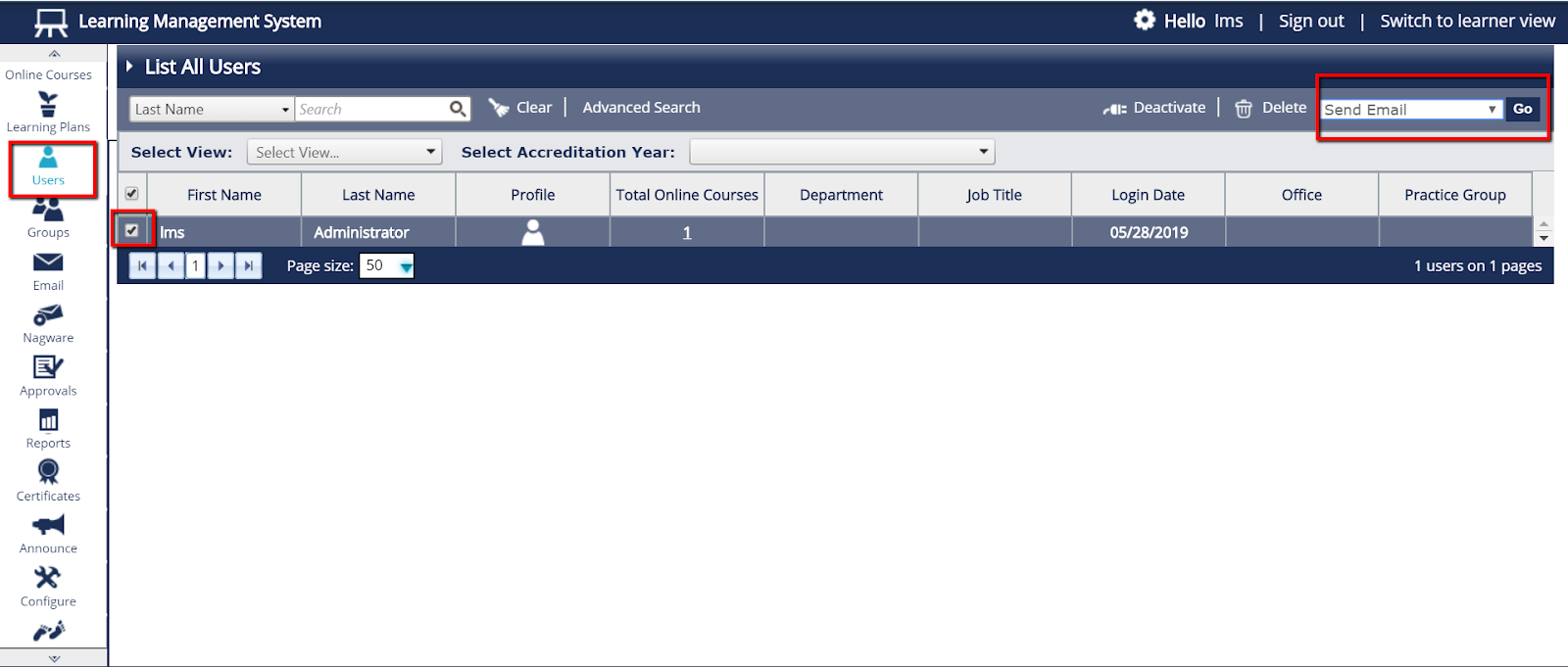
- From the menu on the left side of the page, select “Users”, then select “List All Users”.
- Tick the box next to the user who needs to reset their password and then select “Send Email” from the “Select An Action” box in the upper right hand side of the page and click “Go”.
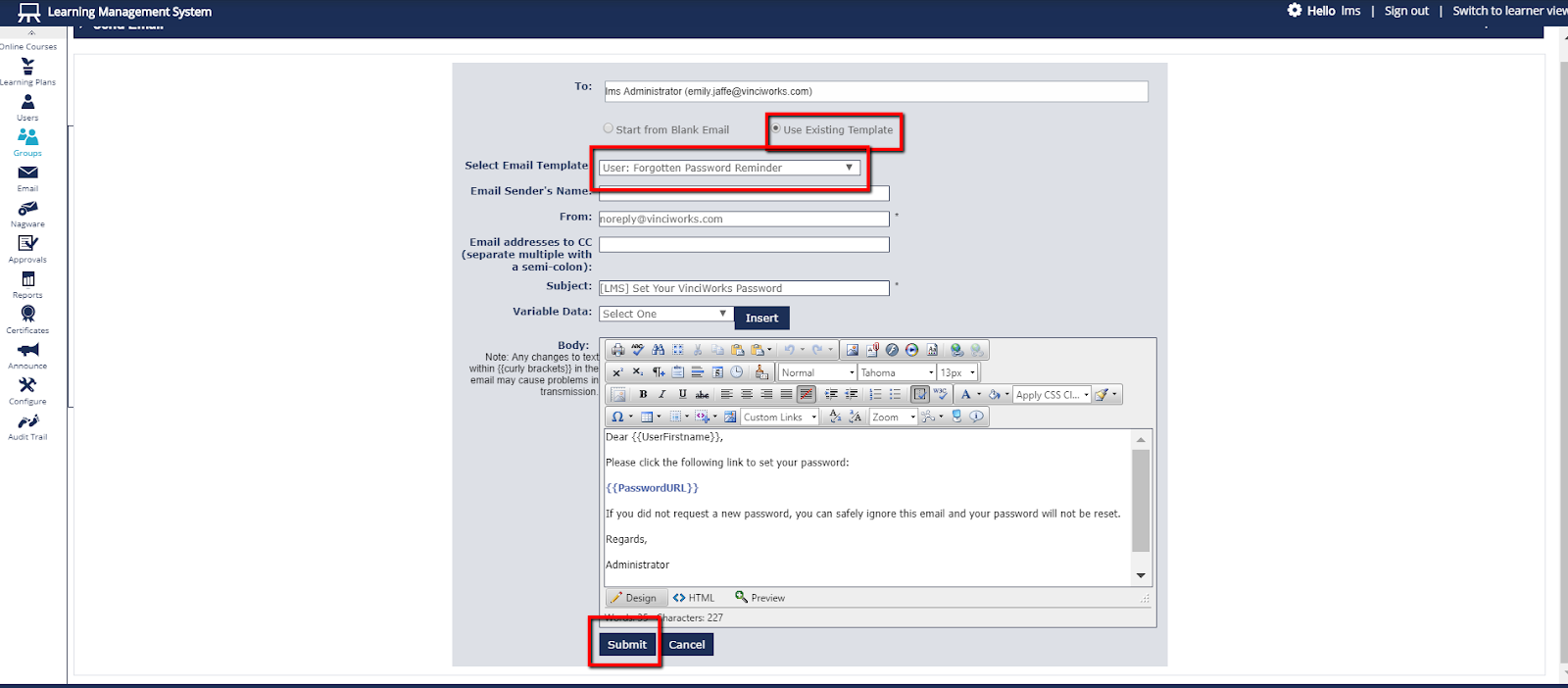
- Just under the user’s name(s) choose the “Use Existing Template” option. A new box will appear titled “Select Email Template” and pull that down to choose “User: Forgotten Password Reminder”. This will populate the preset email with all the relevant fields.
- Click “Submit” to send the email.