
Nagware is a feature available in VinciWorks LMS Professional that allows administrators to send automated reminders to users who have not completed their training.
If Nagware is not licensed, you can still send reminders manually using the email function within the LMS.
This method is suitable for occasional reminders or small groups of users.
However, it requires manual effort and does not provide the automation, scheduling, or escalation features available with Nagware.
When to use this method
This approach may be useful when:
- You need to send a one-time reminder to users
- You do not have Nagware licensed
- You are managing a small number of users
- You need to send an urgent reminder immediately
For ongoing or automated reminders, we recommend using Nagware.
Step 1 — Open the course user list
From the menu on the left-hand side of the page:
- Select Online Courses
- Select List All Courses
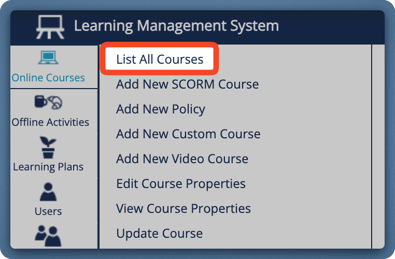
Locate the course you would like to send reminders about.
In the Users Not Started column, click the number shown for the desired course.
This will open a list of users who have not yet started the course.
Step 2 — Select the users to remind
In the new window:
Tick the box to the left of: First Name
This will select all users in the list.
You can also select individual users if you only want to remind specific people.
Step 3 — Send the email
In the Select An Action box in the upper right-hand corner of the page:
- Choose Send Email
- Click Go
This will open the email configuration window.
Step 4 — Choose an email template
Under the To: field:
Select: Use Existing Template
Then choose a template to start from.
We recommend using:
User: New User Welcome Message
This provides a good starting structure for reminder emails.
Step 5 — Edit the reminder message
Update the email text so that it reads as a reminder rather than a welcome message.
You should:
- Change the subject line
- Adjust the message wording
- Keep the login details intact
Important
Do not change the following variables:
These fields are automatically populated by the system and allow users to log in to the LMS.
You can customise the surrounding text as needed.
Step 6 — Send the email
When finished:
Click: Submit at the bottom of the page.
The reminder email will be sent to the selected users.
Important limitations of this method
This manual process:
- Does not send reminders automatically
- Does not repeat reminders
- Does not escalate reminders
- Requires administrators to run the process each time
For organisations that need regular reminders, automated scheduling, or compliance tracking, Nagware is the recommended solution.