
Quick answer: Check the learner isn't archived (go to User Management > Archived Users and click Recover), check the email address on their profile is correct, then set a new password for them from their User Profile if they still can't get in.
In this article
- Check they're using the right login page and username
- Their account has been archived
- Their reset email never arrives
- Set a new password for them
- Something isn't working
Check they're using the right login page and username
Each organisation has its own WorkWize login link. Using a general or old login page is a common reason logins fail, so make sure the learner uses your organisation's link and saves it to their favourites.
To check their username:
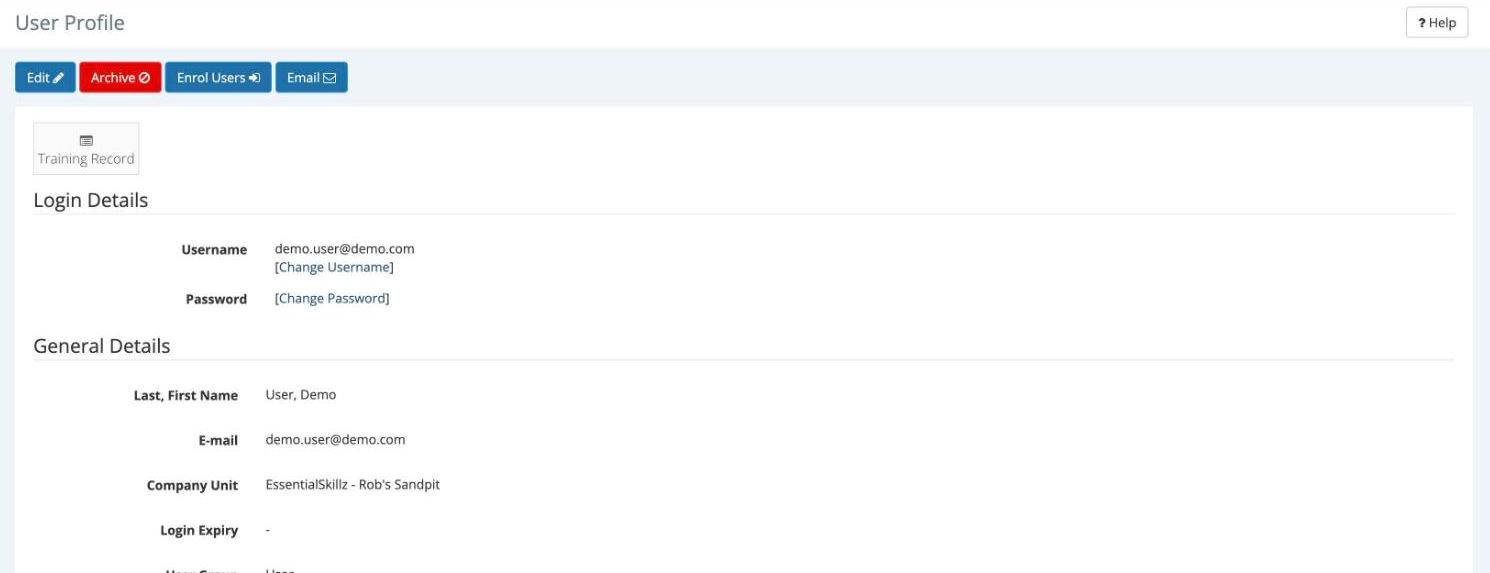
- Go to User Management and click the learner's last name to open their User Profile.
- Look at Username under Login Details. This is exactly what the learner needs to type on the login page. It could be an email address or an employee number, sometimes with leading zeros.
Their account has been archived
An archived learner can't log in. When they try, they see a Login Error pop-up and the message "Either Username or Password you entered is incorrect.", which is the same message as a wrong password. If they use Create New Password / Reset Password?, the page may still say an email has been sent, so it's worth checking for an archived account first.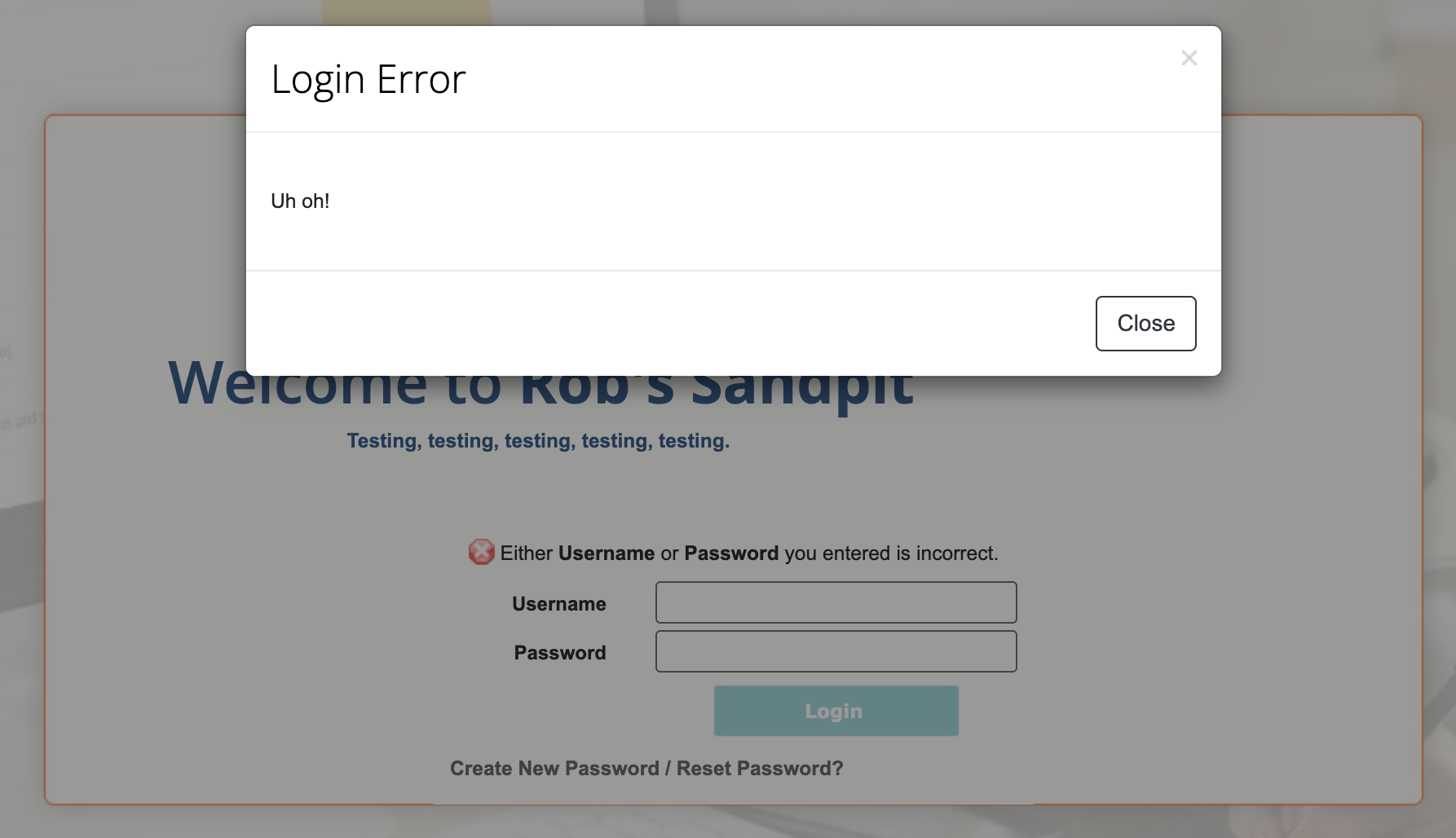
To recover an archived learner:
- Go to User Management and click Archived Users.
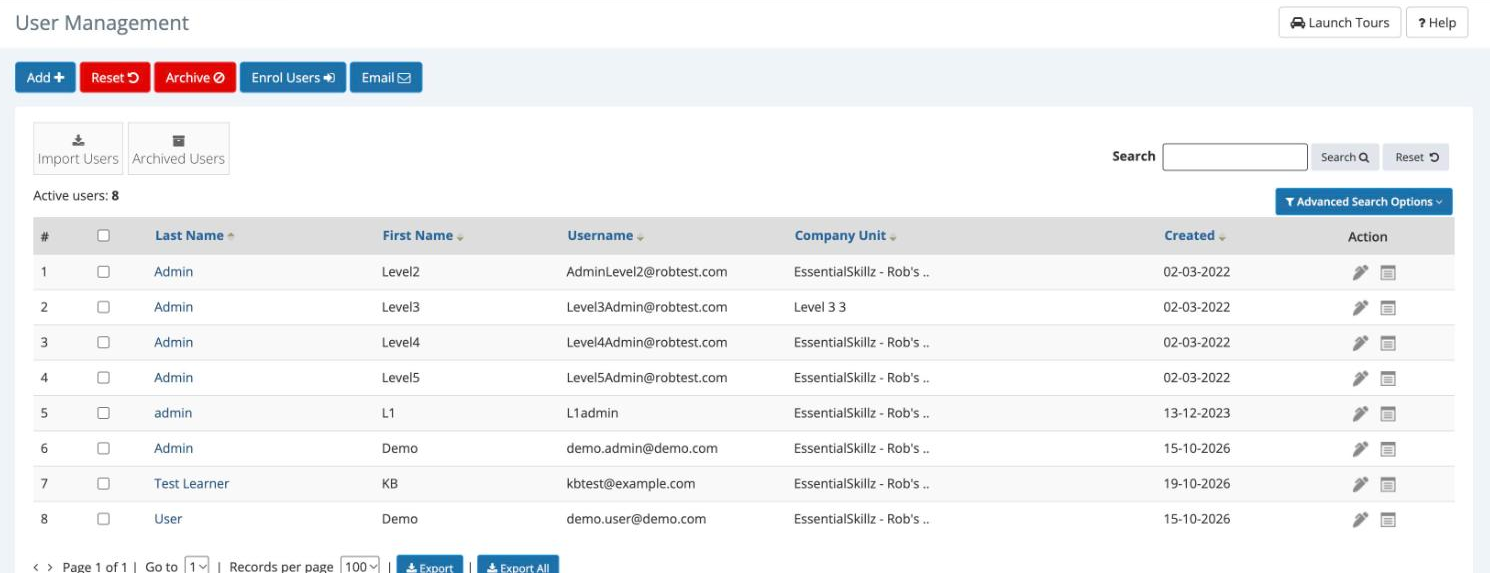
- Search for the learner and tick the box next to their name.
- Click Recover, then click Yes to confirm. You'll see "User(s) successfully recovered".
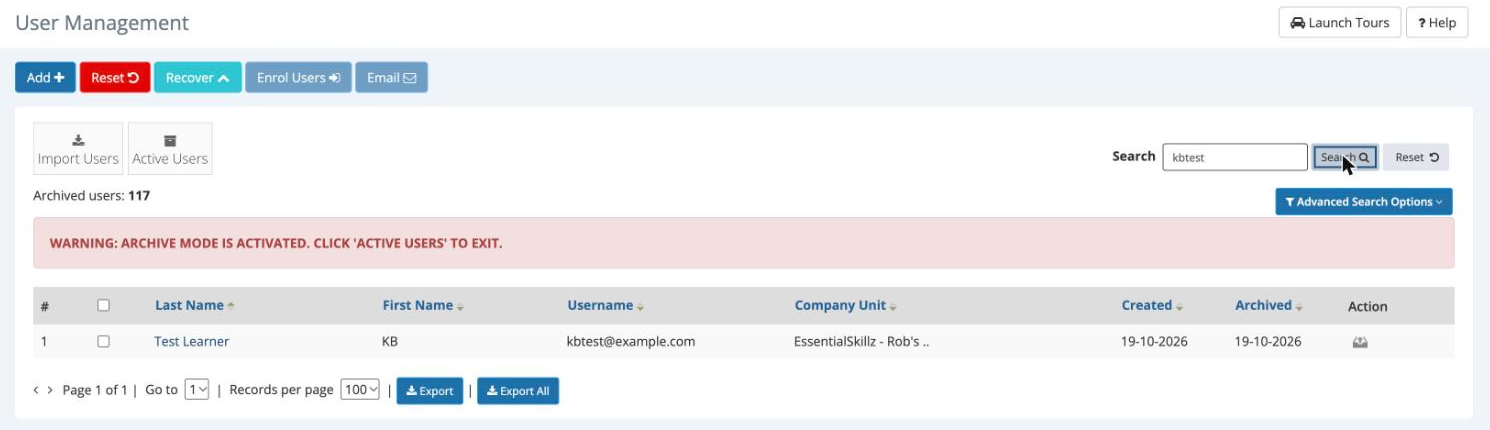
- Click Active Users to leave archive mode. The red "ARCHIVE MODE IS ACTIVATED" warning stays on screen until you do.
- Ask the learner to try logging in again.
Good to know: If a learner keeps getting archived, check the Login Expiry date on their profile. WorkWize automatically archives the learner's profile on that date.
Their reset email never arrives
Reset emails go to the email address on the learner's profile. If it's wrong, blank or formatted incorrectly, the email won't reach them.
- Go to User Management and click the edit (pencil) icon next to the learner.
- Check the E-mail field, correct it if needed, and click Save.
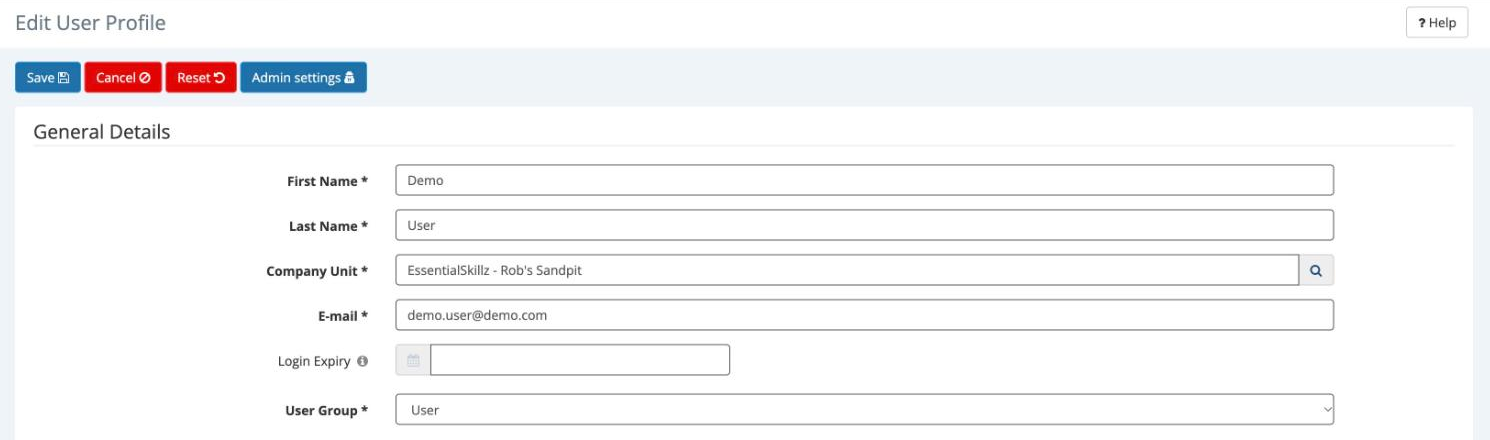
- Ask the learner to try Create New Password / Reset Password? again, and to check their junk folder for an email from noreply@web2.workwize.com or noreply@web3.workwize.com.
Set a new password for them
If the learner still can't get in, you can set a new password for them.
- Go to User Management and click the learner's last name to open their User Profile.
- Under Login Details, click Change Password.
- Enter a new password and click Save.

- Share the new password with the learner securely. Once they're in, they can change it under Profile > Password.
The password must:
- be between 8 and 31 characters long
- include uppercase and lowercase letters
- include letters and numbers
- include at least one special character, such as # $ % & * ! ? or @
- not contain spaces
Something isn't working
I can't find the learner in User Management
They may be archived. Click Archived Users and search for them there.
I recovered a learner but the list still looks wrong
You may still be in archive mode. Click Active Users to go back to your active learners.
The learner sees "Account is disabled or does not exist!"
They may be on the wrong login page, or their browser may be holding old details. Ask them to clear their browser cache and use your organisation's own WorkWize login link.
The learner gets "Either Username or Password you entered is incorrect."
Check their username under Login Details, check they aren't archived, then set a new password for them if needed.
Still need help?
If you've tried these steps and the learner still can't log in, email VinciWorks Support at workwizesupport@vinciworks.com and include the learner's name, their username, your organisation and a screenshot of any error message.