
Quick answer: In Users, click Add user, fill in the name, email and role, then click Confirm & close. To change someone's details, click the three dots at the end of their row and choose Edit.
Add a user
- Click Users.
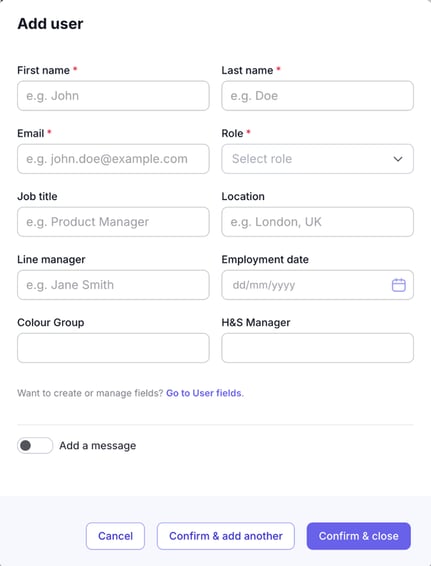
- Click Add user.

- Fill in First name, Last name and Email.
- Choose a Role. Hover over a role to see what it can do.
- Fill in any other fields you want to filter by later, such as Line manager or Employment date.
- To add a personal message to the invitation, turn on Add a message.
- Click Confirm & close, or Confirm & add another to add more people.
The new user shows as Pending until they set their password. Setting up your account and logging in
Choose the right role
The roles you can choose depend on whether your organisation uses Portal Assignments.
Without Portal Assignments, there are two roles:
- Admin: can edit and publish courses, and invite other users.
- Reviewer: can open and edit any course, but can't publish.
With Portal Assignments, the roles are:
- Admin: can do everything in the portal, from viewing and editing courses to assigning and managing training.
- Training manager: can assign training to learners and manage their progress.
- Learning lead: can view and edit courses, and assign and manage training.
- Content manager: can preview, edit and publish courses.
- Learner: can access training assigned to them.
Edit a user
- In Users, click the three dots at the end of the person's row.
- Click Edit.
- Change their details.
- Click Save changes.
Edit several users at once
- Tick the box next to each person.
- In the bar at the bottom of the page, click Edit user fields.

- Tick the fields you want to change, and enter the new values.
- Click Apply changes.
Deactivate or reactivate a user
- To deactivate someone, click the three dots at the end of their row and click Deactivate. They move to the Inactive list.
- To bring them back, click Inactive, find them and click Activate.

Something isn't working?
I can't see "Add user"
Ask support to check your access.
I need to add a lot of people
Import them from a CSV file instead. Importing users from a CSV file
Related articles: Importing users from a CSV file · Creating custom user fields