
Quick answer: In User Management > Users, click the training record icon on the user's row. The tabs show their courses and certificates, assessments, enrolments and the emails they've been sent.
Open the training record
- Go to User Management > Users and find the user.
- Click the training record icon on their row.
OR
Click their last name, then Training Record.
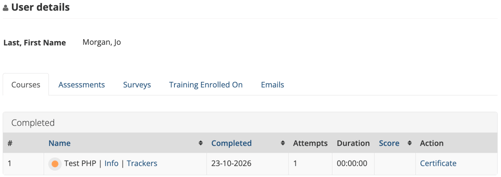
Read the tabs
- Courses: completed courses with their Score and a Certificate link (it opens as a PDF), and courses in progress with their dates.
- Assessments: the date completed, any concerns raised and whether they're resolved, and a Summary.
- Surveys: their surveys.
- Training Enrolled On: their enrolments, with the Start Date, Target Date and End Date.
- Emails: System Emails (each email type, the No. of reminders sent and when it was Last sent) and Emails from Administrator.
Check whether an email went out
- Open the Emails tab.
- Find the email type, such as Training Enrolment, and check Last sent.
Unenrol a user
- Open the Training Enrolled On tab.
- Click the icon in the Unenrol column for that training.
- Click Yes to confirm.
Note: You can't unenrol yourself. Ask another administrator.
Something isn't working?
They're still getting reminders after finishing
Check Training Enrolled On for a second enrolment on the same course and unenrol it. If there isn't one, ask them to open the course, go to the last screen and finish it using the button inside the course (in VinciWorks courses, Complete the course).
Their training isn't on their "To Do" list
Check the End Date on the Training Enrolled On tab. Once it has passed, the training drops off their list. Enrol them again.
They say they never got the email
Check Last sent on the Emails tab. If it was sent, ask them to look in their spam and other folders.
Related articles: Enrolling users on a course or assessment · Seeing who has completed their training