
Quick answer: The Previous LMS Records page holds the training history imported from your old system. You can view each record there and change its expiry date or enrolment event.
Find your records
- In the menu (top right), search for Previous LMS Records and open it.
- Search or filter to find a learner or course.
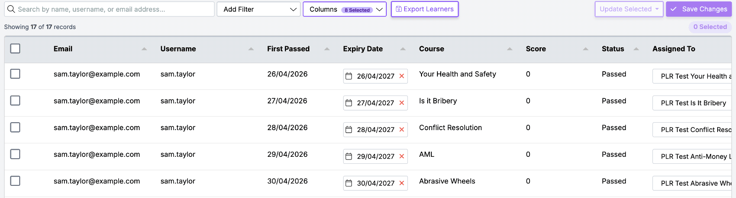
Each record shows the course, when the learner first passed it, its expiry date and the enrolment event it's assigned to.
Change an expiry date or event
- Tick the records you want to change. The box at the top ticks every record that matches your filters.
- Click Update Selected.
- Choose Assign expiry date to set one date, or a length of time after each record's own completion.
- Or choose Assign to event to move the records to another event.
- Check how many records will change, then confirm. The change saves straight away.
To change just one record, edit its expiry date or Assigned To in the table, then click Save Changes.
Note: You can only assign a record to an existing enrolment event, so create the event first. Once a record has been used to enrol a learner, you can't change it.
Understand what happens at the expiry date
On the night a record reaches its expiry date, Astute enrols the learner on the event the record is assigned to. They're given every activity in that event.
The learner won't be enrolled if the event:
- Has passed its end date
- Has been hidden
- Has been removed
If that happens, the record is unassigned from the event.
If a learner has two records assigned to the same event, they're enrolled once the first expiry date is reached. A record with no expiry date never enrols anyone.
When you set up an enrolment event's rules, the Previous LMS Records option decides whether the rules wait for these dates:
- Keep current schedule waits for the learner's expiry date.
- Enrol earlier enrols them as soon as the rules match.
Delete a record
A record that hasn't enrolled the learner yet can be deleted from this page. Deleting it is permanent. Once a record has enrolled the learner, it's locked, so contact support.
See what comes across from your old system
- Only completed courses come across. Courses a learner had started but not finished don't.
- Certificates from your old system don't come across.
- These records show in LXP Reporting, but never in Compliance Reporting.
Something isn't working?
I need to add more records
Click Upload new records, download the template, fill it in and upload it as a CSV file. Contact support if you need help.
I can't change a record
Once a record has enrolled the learner, it's locked. Contact support if it needs changing.
I can't see the event I want in "Assigned To"
The Assigned To list only shows open, active events. You can't choose:
- Hidden events
- Events that have ended
- Self-enrol events
- Events that end before the record's expiry date
A learner wasn't enrolled when their record expired
The event the record was assigned to might no longer be available. Check that it:
- Still exists
- Isn't hidden
- Hasn't passed its end date
A learner's history isn't in "Compliance Reporting"
Previous LMS Records don't show there. Use an LXP report instead.
Related articles: Checking who has completed training · Creating an enrolment event