
Quick answer: In Assignments, click Generate Report, choose learners, courses and a reporting period, then click Generate Report to download a CSV file. The period filters by assignment due date, so for live assignments choose dates that cover their due date.
This is for organisations that use Portal Assignments to give training to their learners.
Generate a report
- Click Assignments.
- Click Generate Report.
- Choose your learners using the filters, such as Job title or Location. Leave them on their "All" options to include everyone.
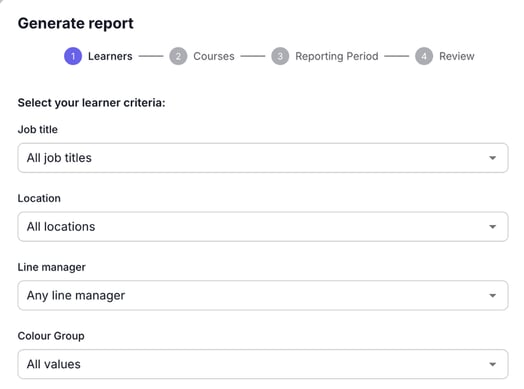
- Click Next.
- Under Include, choose what to report on:
- Required and optional courses for everything
- Required courses only to leave out optional courses
- Optional courses only to see which optional courses were taken
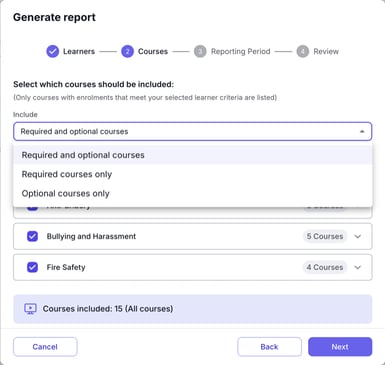
- Only courses your chosen learners are enrolled on are listed, and all start ticked. Untick any you don't want, or search by course title.
- Click Next.
- Choose a reporting period, such as Last 12 months, or click Custom and pick your own dates (up to 2 years).
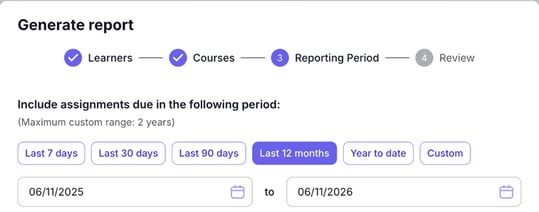
- Click Next and check the summary.
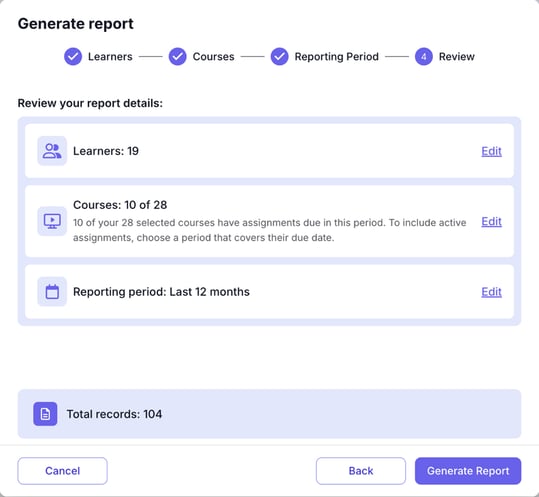
- Click Generate Report. The CSV file downloads.
The CSV file has a Required or optional column. In the Status column, a course a learner turned down shows as "not_taken".
Include live assignments
The reporting period looks at when assignments are due, not when training was done. It starts on Last 12 months, which leaves out assignments due in the future.
To include live assignments, click Custom and choose an end date after their due date.
Tip: If the period step says only some courses have assignments due, click See details to check which ones are missing.
Something isn't working?
My report is missing learners or courses
Check your learner filters, and that the reporting period covers the assignments' due dates.
I can't see "Generate Report"
Ask support to check your access.
Related articles: Creating and editing assignments