
Quick answer: Hide takes an event off your Enrolment Events list and stops new learners joining or being re-enrolled. Learners already on it keep their training and still get reminder emails. To find a hidden event, use the Hidden filter. An End Date closes the event for everyone and takes it off their home pages. Either way, learners' records are kept. To bring an event back, use Unhide or Reopen.
Important: Reopening an ended event starts its rules again, so it can enrol new learners. If you only need to see the event's results, tick Include Expired in Compliance Reporting instead.
Choose between Hide and an End Date
Use Hide to tidy the Enrolment Events list, or to stop new starters joining while current learners finish. When an event is hidden:
- it leaves the Enrolment Events list
- nobody new is added to it, by hand or by rules
- its learners aren't re-enrolled
- learners already on it keep their activities and still get reminder emails
Use an End Date when the training is over and nobody should still be doing it. When the date passes:
- the event closes and learners can no longer open its activities
- it leaves their home pages, whatever progress they've made
- their completions and history are kept
Hide an event
- In the menu (top right), search for Enrolment events and open it.
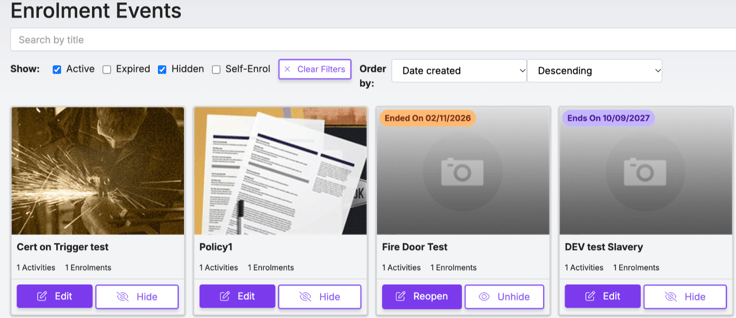
- Find the event and click Hide.
- In the pop-up, click Hide enrolment event.
Close an event with an End Date
- Search the menu for Enrolment events and click Edit on the event.
- Click Details.
- Enter the End Date, then click Save Changes.
Tip: An End Date closes the event for everyone on it. To stop reminders for one person, remove them from the event instead. See Removing a learner from an enrolment event
Find and edit an event
- Search the menu for Enrolment events and open it.
- Type the event's title in the search box, or use Order by (Date created, Start Date, End Date or Title).
- Click Edit on the event. An expired event shows Reopen instead (see below).
- Click the tile you need:
- Details: the title, End Date and re-enrolment settings.
- Activities: the training in the event.
- Learners: who is enrolled.
- Rules: the rules that enrol learners automatically.
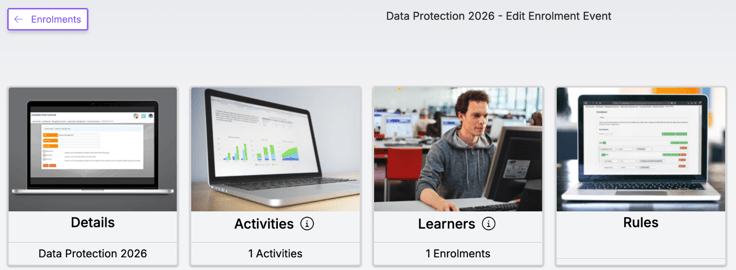
An event that re-enrols learners also has a Reenrolment Activities tile.
Find hidden and expired events
In the menu, search for Enrolment Events and select it, then tick Hidden or Expired under Show. Compliance Reporting leaves these events out too, unless Include Hidden or Include Expired is selected.
See Why is an event or learner missing from Compliance Reporting?
Unhide or reopen an event
Important: Check the event's rules first. When the event comes back, any learners who match the rules and are not already part of the event are enrolled, and they get any enrolment emails set up for the event.
- To bring back a hidden event: tick Hidden, find the event and click Unhide. Then click Unhide enrolment event. Its rules and re-enrolment start running again.
- To bring back an expired event: tick Expired, find the event and click Reopen, then click Reopen enrolment event. Its rules start running again.
Something isn't working?
I want to delete an event
Hide it to take it off your list, or set an End Date to close it. Learners' records are kept.
A hidden event is still sending reminders
Hiding doesn't stop them for learners already on it. Set an End Date to close the event for everyone. To stop one person, unhide the event and remove them.
A learner still sees a course on their home page
Learners already on a hidden event can still open its training. Set an End Date to take it off everyone's home page.
A course has left a learner's home page but I need the record
Their record keeps courses from ended events. Open View Progress for the learner. See Checking a learner's progress
I can't remove a learner from a hidden event
A hidden event must be unhidden first, and unhiding starts its rules again. Check the rules, then:
- Unhide the event.
- Remove the learner.
- Fix the rules if they still match the learner.
Learners aren't being enrolled by rules
Rules don't run on an event that's hidden or past its End Date. See Enrolling learners automatically with rules
A learner wasn't re-enrolled
Hidden events don't re-enrol their learners. Unhide the event if you want re-enrolment to run.
Related articles: Removing a learner from an enrolment event · Creating an enrolment event · Why is an event or learner missing from Compliance Reporting?