
Quick answer: Go to your organisation's WorkWize login page and click Create New Password / Reset Password? under the Login button. Enter your username, click Confirm, then follow the link in the email we send you. Your WorkWize password is separate from your work computer or email password.
In this article
- I've forgotten my password
- I'm logging in for the first time
- I want to change my password
- Something isn't working
I've forgotten my password
You can reset your password yourself from the login page.
- Go to your organisation's WorkWize login page.
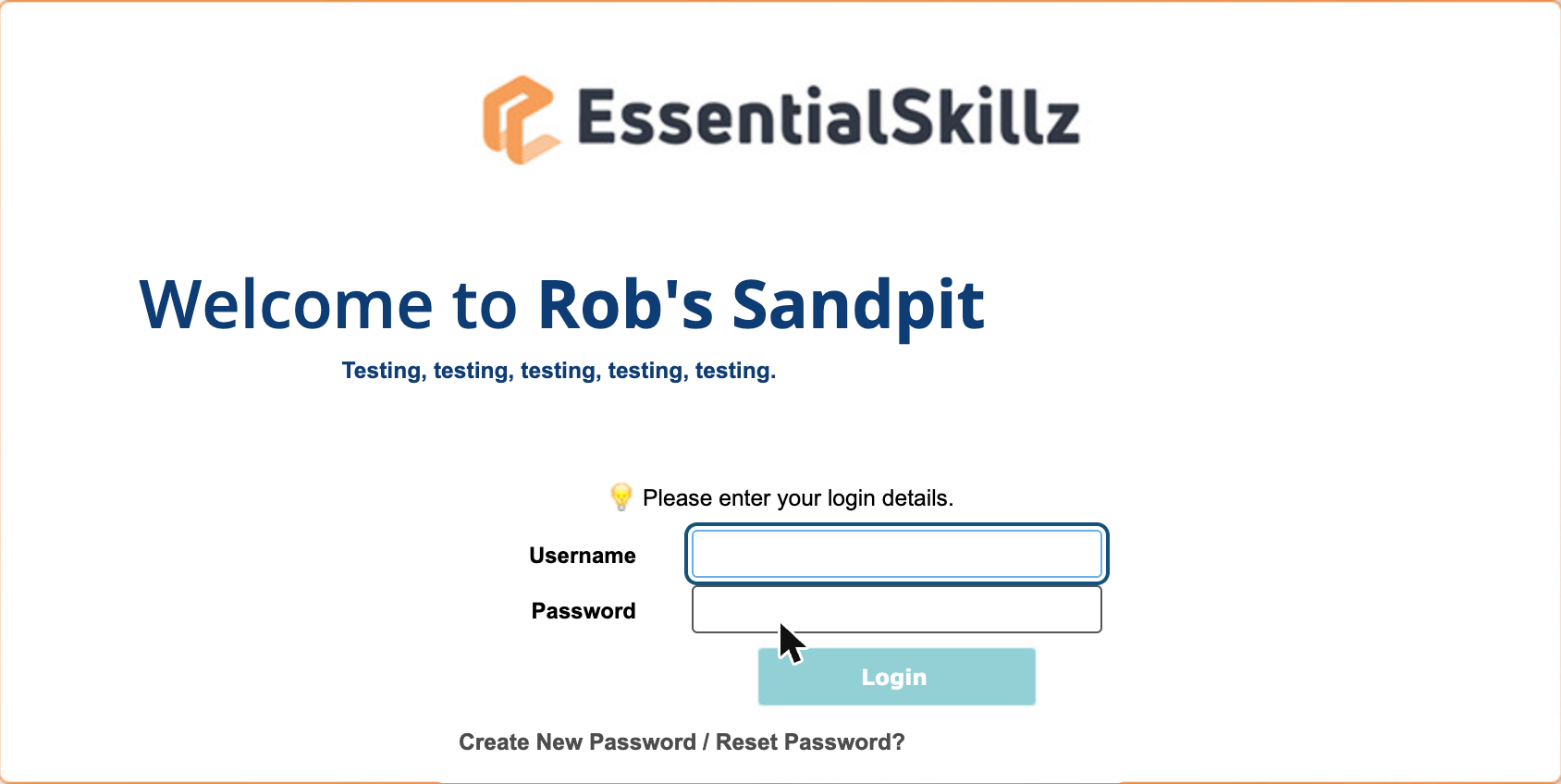
- Under the Login button, click Create New Password / Reset Password?
- Enter your username in Your Username and click Confirm.
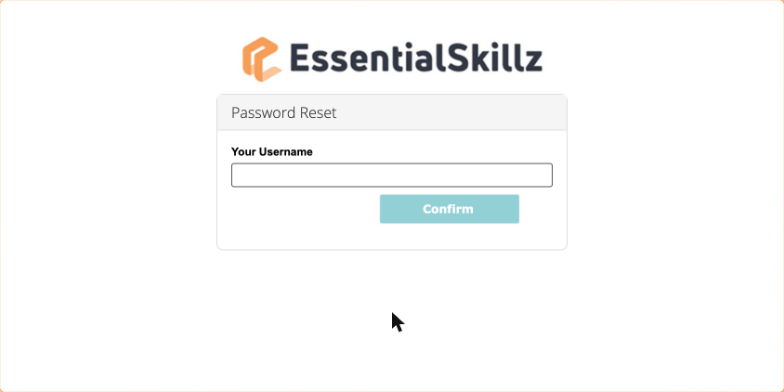
- Check your email for a message from noreply@web2.workwize.com or noreply@web3.workwize.com, and click the link to set a new password. If you can't see it, check your junk folder.
Can't access the email address on your account? Ask your WorkWize administrator. They can update your email address or set a new password for you.
I'm logging in for the first time
When your organisation adds you to WorkWize, you'll receive an enrolment email with a link and your username. Some organisations give you a link, username and temporary password instead.
- Click the link in your enrolment email, or go to the link your administrator gave you.
- Enter your username (and temporary password, if you were given one).
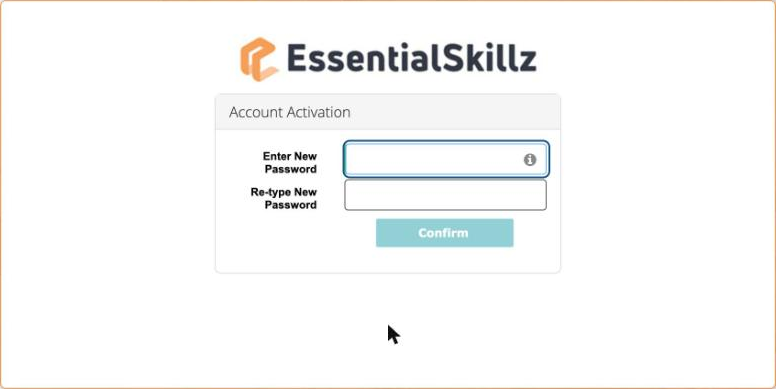
- On the Account Activation screen, enter a new password in both boxes and click Confirm.
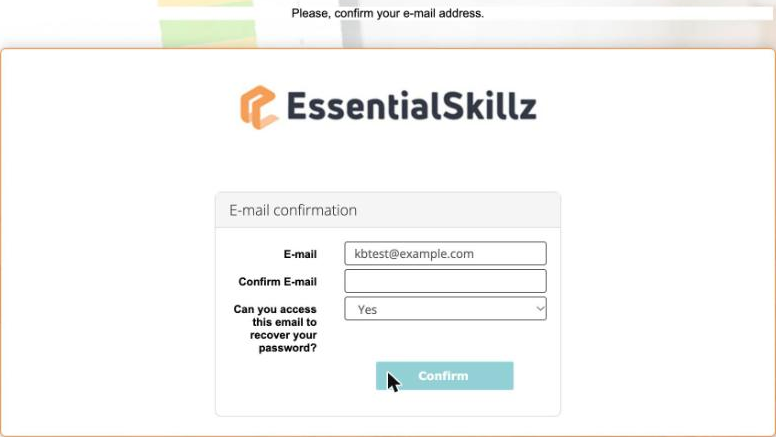
- On the E-mail confirmation screen, check your email address is right and type it again in Confirm E-mail.
- For Can you access this email to recover your password?, choose Yes, then click Confirm. This means you can reset your own password by email in future.
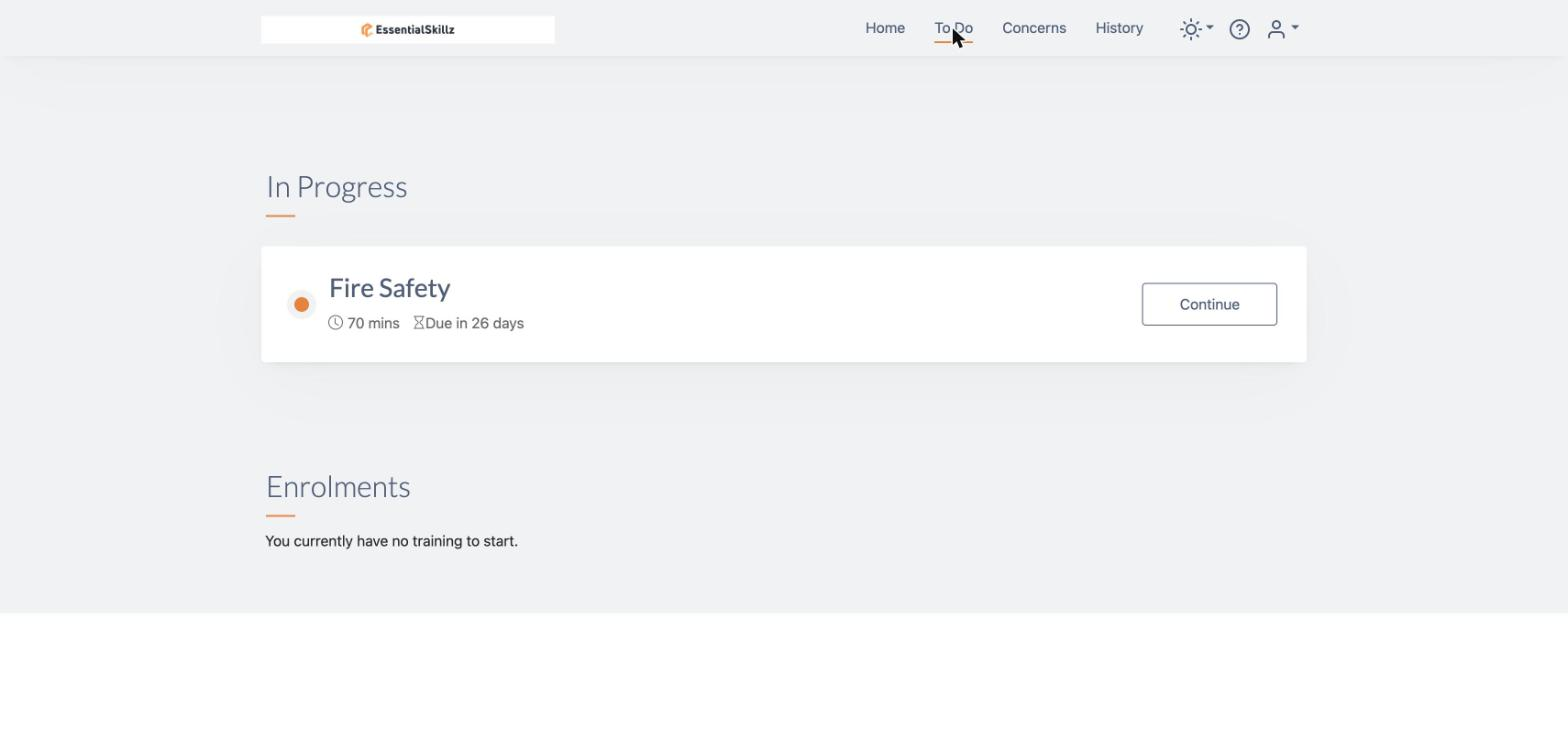
- You'll arrive on your Home page. Click To Do to see your training.
Your password must:
- be between 8 and 31 characters long
- include uppercase and lowercase letters
- include letters and numbers
- include at least one special character, such as # $ % & * ! ? or @
- not contain spaces
I want to change my password
If you know your current password, you can change it at any time.
- Click the person icon at the top right and choose Profile.
- Click the Password tab.
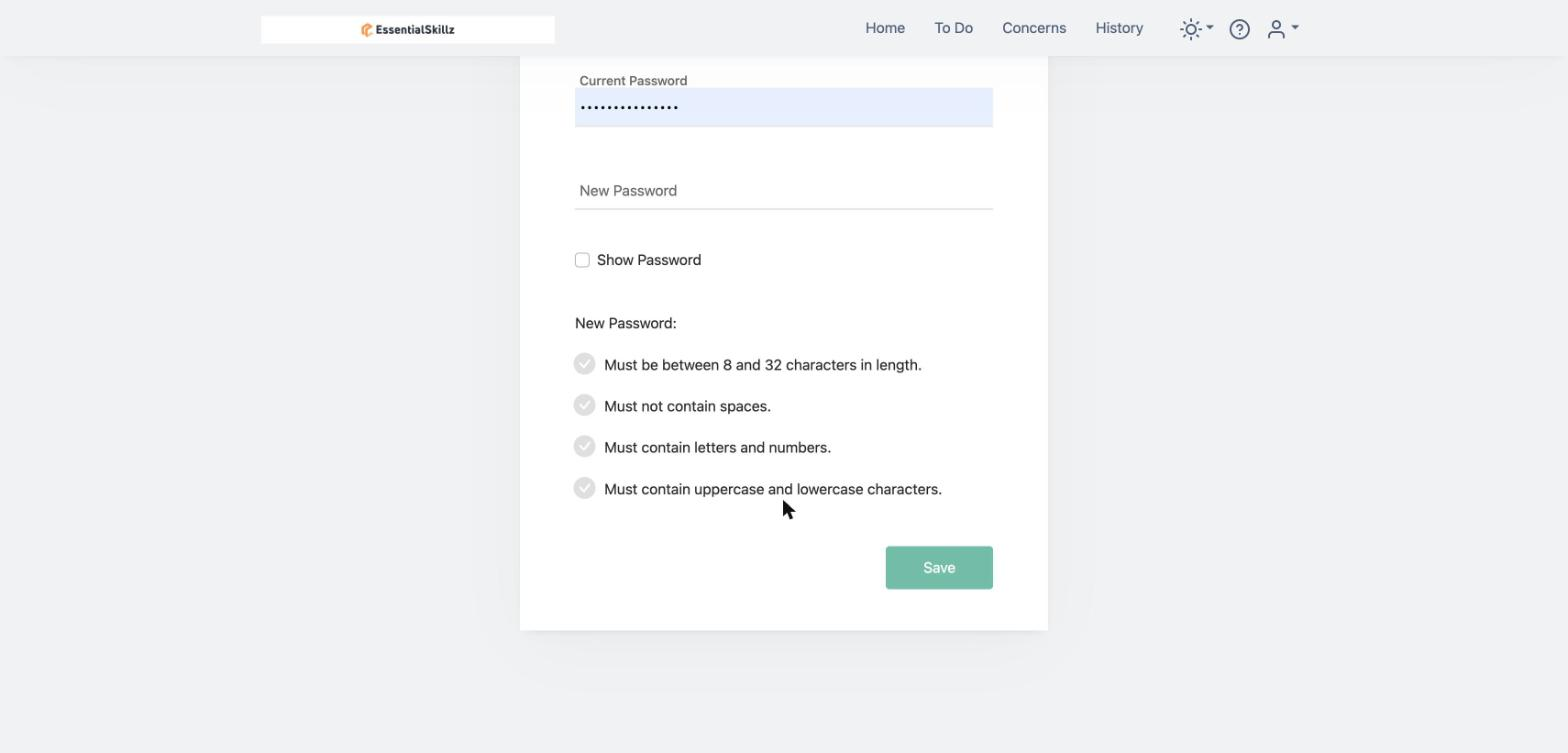
- Enter your Current Password and your New Password, then click Save.
Something isn't working
"Account is disabled or does not exist!"
You may be on the wrong login page, or your browser may be holding old details. Clear your browser cache, then use your organisation's own WorkWize login link. Save it to your favourites so you always use the right page.
"Username or password incorrect"
Check you're using the right username. Your organisation decides this: it could be your email address or an employee number, sometimes including leading zeros. If you're still stuck, reset your password. If that doesn't work, ask your WorkWize administrator to check your account is active.
The reset email hasn't arrived
Check your junk folder for an email from noreply@web2.workwize.com or noreply@web3.workwize.com. If it isn't there, ask your WorkWize administrator to check the email address on your profile.
Resetting my password takes me to an Account Activation page
Your account hasn't been activated yet. Ask your WorkWize administrator or VinciWorks Support for a new activation link.
I don't know my login link or Company ID
Ask your WorkWize administrator. They can give you your organisation's login link.
Still need help?
Your WorkWize administrator can reset your password, update your email address and check your account. If they can't help, email VinciWorks Support at workwizesupport@vinciworks.com and include your name, your organisation and a screenshot of any error message.