
Quick answer: A class is one run of a course on set dates: click the calendar icon next to the course in Instructor-led Training, fill in the three tabs, then click Save schedule.
Open the class schedule
- In the menu (top right), search for Instructor-led Training and open it.
- On the Courses tab, click the calendar icon next to the course.
- If the course already has a class, click Add new class.
Add the class details
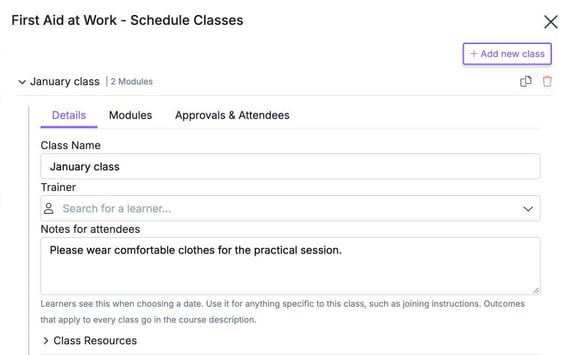
- On the Details tab, enter the class details:
- Class Name: a name for this run of the course.
- Trainer: search for someone in Astute, or add an external trainer.
- Notes: anything attendees need to know, such as joining instructions. Learners see these when they choose a date.
- To add files or links that only learners on this class can see, open Class Resources.
Set dates and places for each module
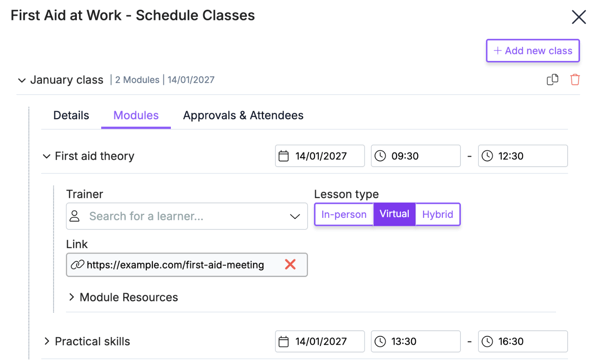
- Open the Modules tab.
- Set a date, start time and end time for each module.
- Click the arrow next to a module and choose its Lesson type:
- In-person: choose or add an Address.
- Virtual: paste the meeting Link.
- Hybrid: add both an Address and a Link.
- To add files or links for one module only, open its Module Resources.
Tip: The class trainer runs every module. To use a different trainer for one module, change it on that module.
Set attendee limits and approvals
- Open the Approvals & Attendees tab.
- If the class has a size limit, set Minimum number of attendees or Maximum number of attendees.
- If learners need approval before they're enrolled, turn on Require approval before enrolment?.
- On the left, choose who approves:
- Line manager
- Trainer
- Admin
- To change the order they approve in, drag the approvers on the right.
- To add anyone else in Astute as an approver, click Add custom approver.
- To show the class to some people only, click the button under Who can see it (it says Everyone at first) and choose who.
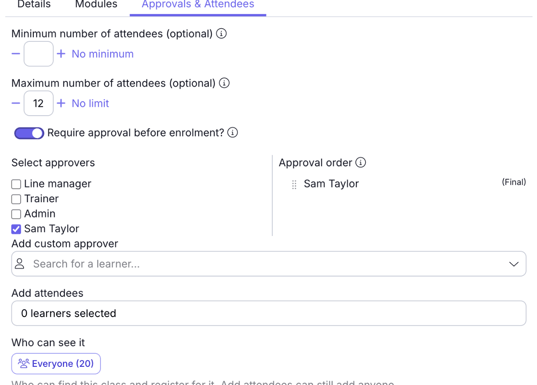
- To add learners now, click the Add attendees box.
- Tick the learners and click Add selected learners.
- Click Save schedule.
Tip: To run the same course again, click Add new class, or click the copy icon next to a class to copy it.
Something isn't working?
"Please complete the highlighted address/link fields before saving."
A module is missing its address or meeting link. Open the Modules tab and fill in the highlighted fields.
I need to cancel a class
Open the class schedule, click the bin next to the class, then Remove class, and click Save schedule. Everything set up on the class is lost. Booked learners are only told if the "The class is cancelled or deleted" email is set up. See How do I manage Instructor-led Training emails?
I can't find a button to create a Teams, Zoom or Google Meet link
Create the meeting in a calendar app, then paste its link into Link.
Related articles: How do I create an instructor-led training course? · How do I enrol learners on instructor-led training?