
Quick answer: The Compliance Report shows how many learners have passed their training and are still in date. Choose a view, filter it, then click any number to see the learners behind it, download them or email them.
Open the report and choose a view
- On your home page, click View on the Compliance Report tile. Or, in the menu (top right), search for Compliance Reporting and open it.
- Under View compliance by, choose Activity, Code or Learner.
- Activity: each course or policy. Click a title to see the events it's in, then click an event to split it by department.
- Code: each compliance code, which starts as the event's title. Click a code, then an activity, to split it by department.
- Learner: each person, with their department.
Filter the report
- To look at one period, set a From Date and To Date, or use Set to for a quick range.
- To look at one group, pick from Departments, Job Titles, Additional Fields or Types.
- Tick Include Expired or Include Hidden to add ended or hidden events.
- Click Apply Filters.
Tip: To see one department's score, tick only that department under Departments.
Read the numbers
- Compliance [%]: Compliant as a share of Required.
- Required: learners who need to complete it.
- Compliant: learners who passed and are still in date.
- Non-Compliant: learners who haven't passed, or whose pass has run out.
A pass stays in date for the event's re-enrolment period, counted from the day the learner passed.
See and contact the learners behind a number
- Click a number under Required, Compliant or Non-Compliant to list those learners. The Chasers column shows how many reminders each enrolment has had.
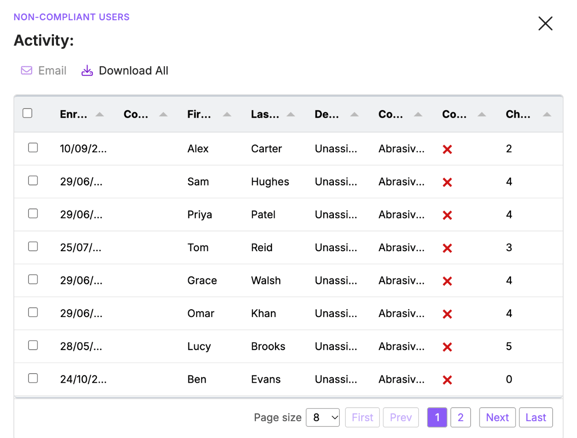
- Click Download All to save the list as a CSV file.
- To email some of them, tick their rows and click Email.
- Write a Subject and your message. Add merge fields, such as first name, to personalise it.
- Click Send.
Tip: To add CC addresses, click Show CC and separate them with a semicolon. Each CC address gets a copy for every learner you select.
Print or download the whole report
Click Print, or Download to save the table as a CSV file you can open in Excel.
Something isn't working?
An event or learner is missing
See Why is an event or learner missing from Compliance Reporting?
An optional course is pulling the score down
Clear the event's compliance code to leave it out of the report. See Why is an event or learner missing from Compliance Reporting?
A manager's score looks wrong
A manager's report only covers the learners they're set to see.
The list is longer than the number I clicked
It lists every outstanding enrolment, including learners who are compliant through another event.
I can't see "Compliance Reporting"
Ask support to check your access.
Related articles: Checking who has completed training · Scheduling a report