
Quick answer: Quick Quiz results are in LXP Reporting: create a Quick Quizzes report for each learner's score and attempts, or for how many got each question right or wrong.
Build a Quick Quiz report
- In the menu (top right), search for LXP Reporting and open it.
- On the Report Packs tab, click Create a report.
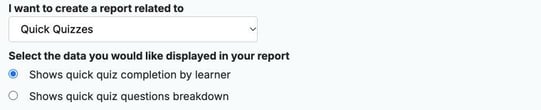
- Under I want to create a report related to, choose Quick Quizzes.
- Choose the data you want:
- Shows quick quiz completion by learner for each learner's result.
- Shows quick quiz questions breakdown for how many got each question right or wrong.
- Click Continue.
- Choose your columns and filters, then run the report.
Useful columns include Score %, Number of Attempts, Quick Quiz Pass Mark and Enrolment Status.
Note: Score % shows a learner's best attempt.
Something isn't working?
A learner shows on more than one row
Leave out Module Status. It shows each attempt on its own row, so a learner who failed and then passed appears twice. Use Enrolment Status to see who has passed.
I changed the pass mark but old results didn't change
Changing the pass mark doesn't re-mark results that are already recorded.
I can't see "LXP Reporting"
Ask support to check your access.
Related articles: Creating a Quick Quiz · Scheduling a report · Why does a passed course show an incomplete module in an LXP report?