
Quick answer: Select Users, then Add New User. Fill in their details and click Submit, or Submit and Enrol in Online Courses to assign courses straight away.
Administrators can add new users one at a time, for example, when a new employee joins or someone needs access to training.
Add a new user
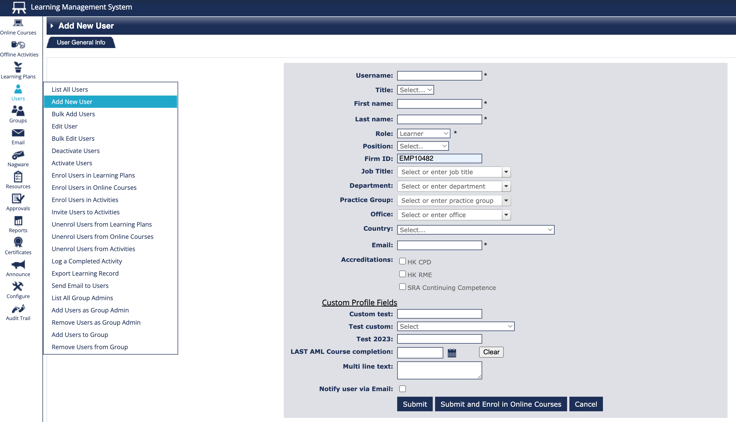
- From the menu on the left side of the page, select Users, then click Add New User.
- Fill in the user's details (see the fields below).
- Choose one of these options:
- Submit adds the user without assigning any courses.
- Submit and Enrol in Online Courses adds the user and takes you straight to choosing their courses. Use this if the user needs training straight away.
User fields explained
- Username: their login name. It's often their email address, but some organisations use a short code instead. It should be unique to each user.
- Role: set standard users to Learner. The only other role is Administrator, which can manage users, assign courses, run reports and change system settings. Only give it to people who manage the system.
- Firm ID: a unique reference for the user, such as an employee ID, staff number or HR reference. It's used for reporting and for connecting other systems.
- Job Title, Department and other profile fields: used to report on, filter and organise users. Fill in as much as you can, so reports are accurate.
- Accreditations: tick only the ones that apply. For example, tick SRA Continuing Competence if the user needs the Continuing Competency Module, or HK CPD or HK RME for Hong Kong accreditation tracking.
Note: Accreditations only show where SRA or HK compliance is enabled on your account. If you need them and don't see them, ask support to check your access.
Related articles: Bulk uploading learners · Deactivating and reactivating users