
Quick answer: In List All Groups, tick the group, choose Enrol Groups in Online Courses and click Go. Pick the courses, and tick Enrol future users who are dynamically added to this group so new members are enrolled too.
Enrolling a group in online courses allows you to assign training to multiple users at once.
This is the most efficient way to manage training at scale. Instead of enrolling users individually, you can enrol an entire group and automatically include new users who meet the group's criteria.
When should you enrol a group?
Enrolling groups in courses is useful when:
- Assigning training to departments or teams
- Rolling out mandatory training across locations
- Managing onboarding for new starters
- Making sure future users get required training automatically
Before you begin
Groups are a feature of VinciWorks LMS Professional. If you don't see Groups in your menu, ask support to check your access.
Enrol the group
- From the menu on the left side of the page, select Groups, then click List All Groups.
- Tick the box next to the group you want to enrol in courses.
- In the Select an Action box (top right), choose Enrol Groups in Online Courses and click Go.
- Choose the course or courses. All users currently in the group will be enrolled in them.
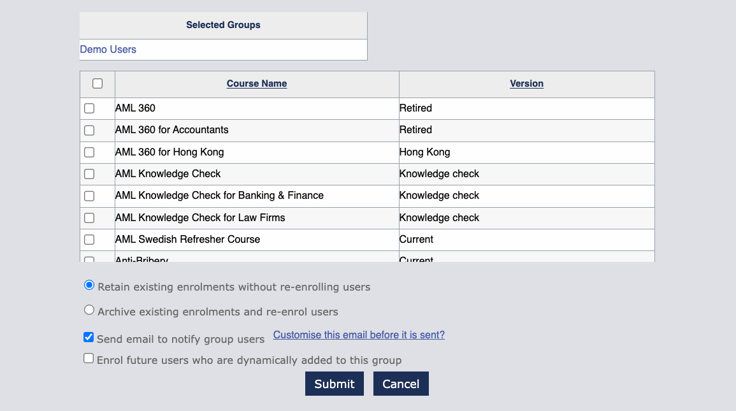
- Choose what happens to users who are already enrolled on the course:
- Retain existing enrolments without re-enrolling users (selected by default): they keep their current enrolment.
- Archive existing enrolments and re-enrol users: their current enrolment is archived and they're enrolled again.
- Send email to notify group users is ticked by default, so everyone currently in the group gets the standard enrolment email. This is typically used when launching new training. Untick it if you don't want to send the email. To change the email first, click Customise this email before it is sent?
- Tick Enrol future users who are dynamically added to this group, so anyone added to the system later who matches the group's criteria is enrolled automatically. This is strongly recommended for ongoing training.
- (Optional) If you ticked step 7, an extra option appears: tick Send enrolment emails to notify future group users to send the standard enrolment email whenever a new user is added to the group and enrolled.
- Click Submit.
Note: If Enrol future users who are dynamically added to this group isn't ticked, new users who join the group later won't be enrolled automatically. You'd need to repeat the enrolment yourself.
See an example
A company wants all Support staff in London to complete Data Protection training.
They create a group:
- Office → London
- Department → Support
They enrol the group in the Data Protection course and tick Enrol future users who are dynamically added to this group.
Result:
- All current Support staff in London are enrolled
- Any new Support staff in London will be enrolled automatically
- No further action is required
How does it work?
- All current group members are enrolled straight away
- Future users can be enrolled automatically
- Emails can be sent to current users, future users, or both
- Group enrolments update as users join or leave the group
Related articles: Creating a group