
Quick answer: Resources are extra materials, such as videos, webinars, guides and blogs, included for every client. To find them, click Explore in the Portal menu and choose Resources.
What are resources?
Each resource card shows its type:
- Video, or Playlist (a set of videos)
- Webinar (a recording)
- Guide
- Blog
They're grouped into the same suites as courses, such as Compliance, Health & Safety and Diversity and Inclusion.
Open resources
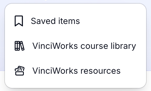
- In the menu at the top, click Explore.
- Click Resources.
- Find what you need:
- Scroll through Recently added, Explore our suites, Top topics and Popular resources.
- Click Browse to pick a suite, or All Resources.
- Type a word or two into Search.
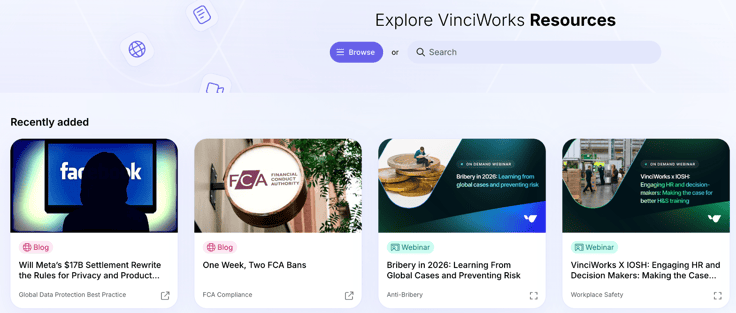
- Click a resource to open it.
Webinars play in the Portal. Blogs open in a new tab.
Share a video
- Open a video.
- Click Copy video link, then paste the link into an email or a message in Slack or Teams.
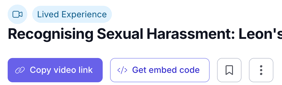
Tip: To show the video on a web page, such as your intranet, click Get embed code instead.
Save resources for later
- Open a resource and click the bookmark icon under its title.
- To find your saved resources, click Explore, then Saved items, and open the Resources bookmarks tab.
Something isn't working?
I can't see "Resources" under "Explore"
Whether you see resources depends on your Portal role. If it isn't there, ask support to check your access.
A resource I've seen online isn't here
Search for one or two key words rather than the full title, as names can differ slightly from the website. If you still can't find it, contact support.