
Quick answer: Every course on your Courses page is one you license. To check any other course, open Explore > Course library: courses you license have a checkmark on their card.
Check your Courses page
- In the menu at the top, click Courses.
- Type the course name into Search all courses, or pick a suite or topic on the left.
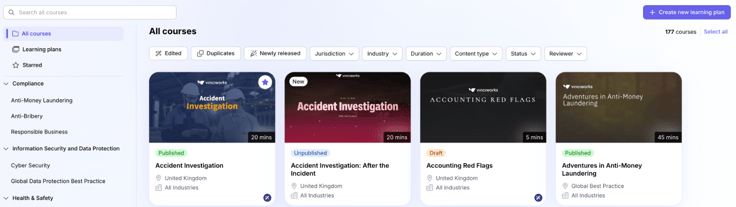
If the course is here, you license it.
Check the course library
The course library holds every course in our library, including ones you don't license.
- Click Explore, then Course library.
- Type the course name into Search for topics and courses, or click Browse.
- Look at the top-right corner of the course card. A checkmark means you license it.

Tip: Hover over the checkmark to see "This course is included in your subscription.", with a Go to the Courses page link to your version.
A course with no checkmark isn't in your subscription, but you can still open it and click Launch course to preview it.
Add a course to your subscription
- Note the course name and number (shown above the title when you open it, for example #226).
- Contact your account manager to add it.
Something isn't working?
A course I license isn't on my "Courses" page
Clear any filters and search again. If it still isn't there, ask support to check your subscription.