
Quick answer: Log in to the Portal and open My training. Click Start on a course, and when you've finished it, click View Certificate under Recently completed. Courses marked Optional are up to you to take or turn down.
This is for organisations that use Portal Assignments to give training to their learners.
Open your training
- Log in to your organisation's Portal. Setting up your account and logging in
- If you're also an admin or manager, click your name (top right) and choose Learner under Switch view.
- In the menu, open My training. It lists the courses assigned to you, and Your progress sums them up.
- To find a course, search your training, or switch View by between status and due date.
Take a course
- Find the course under Start Learning.
- Click Start.
- Click Close when you want to leave it.
- To go back to a course you've started, find it under Continue Learning and click Continue.
A locked course shows which course you need to complete first.
Choose whether to take an optional course
Your admin can mark some courses as Optional. They:
- Are listed after the courses you need to complete
- Have no due date
- Don't count towards Your progress
To turn down an optional course:
- Click I don't want to take this.
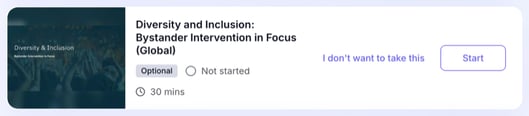
- In the box that opens, click Confirm.
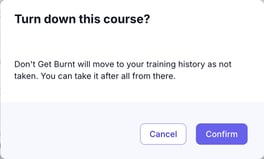
The course moves to Training history as Not taken.
To take it after all:
- In Training history, click Take this course after all. The course goes back to My training.

Get your certificate
- Find the course under Recently completed.
- Click View Certificate.
Training history lists all your past training and certificates.
Something isn't working?
I can't see a course I was told to do
Your admin gives you courses by assigning them to you. Ask your admin to check the assignment.
A course is locked
Complete the course it names first, then it opens.
I can't see "Switch view"
It only shows for people who have another role as well as learner.
Related articles: Setting up your account and logging in