
Quick answer: In the Scheduling step, choose Fixed dates for one shared deadline or Flexible dates to count each learner's time from when they're assigned. Then use Customise course schedules to change single courses.
This is for organisations that use Portal Assignments to give training to their learners.
Choose fixed or flexible dates
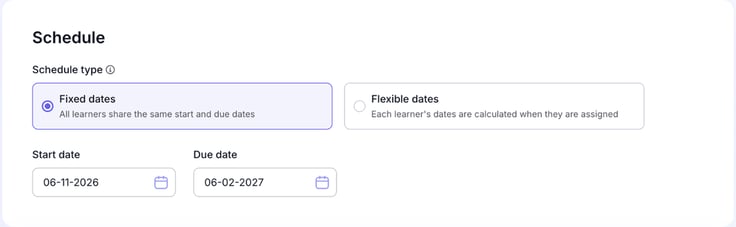
- In the Scheduling step, under Schedule type, choose:
- Fixed dates: all learners share the same start and due dates. Best for one deadline, for example an annual renewal.
- Flexible dates: each learner's dates are worked out when they're assigned. Best for rolling training such as onboarding.
- Set the dates:
- Fixed dates: pick the Start date and Due date.
- Flexible dates: set Time to complete, how long learners have once a course becomes available.
Note: You can't switch between fixed and flexible dates once the assignment is created. Switching before then resets any changes you made to single courses.
Assignments made from a learning plan use the plan's schedule, so you can only view it here. See Creating a learning plan.
Change dates for one course (fixed dates)
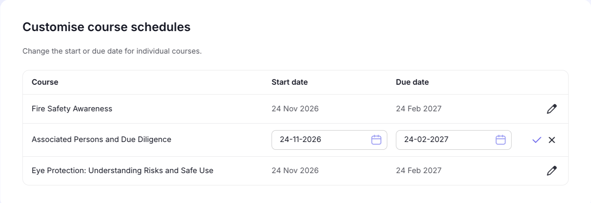
- In the Customise course schedules card, click the pencil next to the course.
- Change its start or due date, then click the tick to save.
Delay or lock a course (flexible dates)
- In the Customise course schedules and sequencing card, click the pencil next to the course.
- Click the Availability drop-down and choose:
- Immediate: the course opens as soon as the learner is assigned.
- After a delay: the course opens a set number of days, weeks, months or years after the learner is assigned.
- Locked by another course: the course opens once the learner completes the course you pick.
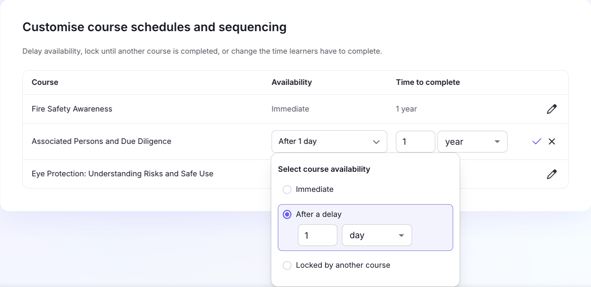
- Change its time to complete if needed, then click the tick to save.
Make a course optional
Every course is required unless you change it. Optional courses:
- Don't count towards the assignment's completion
- Never become overdue
- Don't get due date reminders
- Can be turned down by learners
- In the course table, change the course to Optional in the Required column.
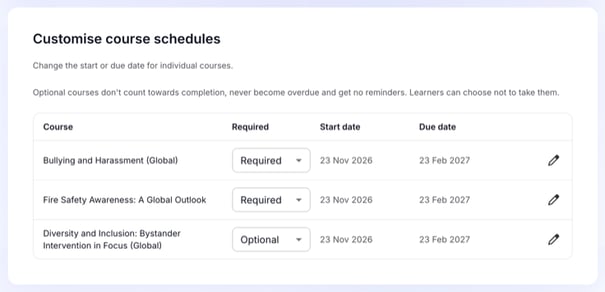
- In the Review step, check the course is listed under Optional courses.
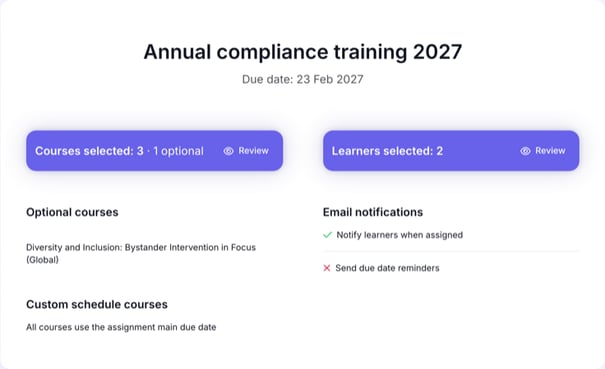
If every course is optional, the summary says Optional only and learners choose which courses to take. Assignments made from a learning plan can't have optional courses.
Tip: If a learner has the same course as required in another assignment, they take it once, as required. Any progress they've made carries over.
Change the schedule of a live assignment
- On the Assignments page, click the three dots on the assignment's row, then Edit.
- Go to Scheduling and make your changes, for example a later due date.
- Click Update assignment.
If you switched courses between required and optional, a message lists the changes:
- They only affect learners who haven't finished the course.
- A course you make required comes back for learners who turned it down.
- If assignment emails are on, learners who haven't finished a course that's now required get an email.

Something isn't working?
I can't switch between "Fixed dates" and "Flexible dates"
Create a new assignment with the other type.
I can't see the "Required" column
Assignments made from a learning plan don't have it: all their courses are required.
Related articles: Creating and editing assignments · Creating a learning plan · Finding and completing your assigned training