
Quick answer: Open your welcome email and set a password. If your organisation uses multi-factor authentication, scan the QR code with an authenticator app. After that, you log in with your email address, password and the 6-digit code from the app.
Set your password
- Open your Portal welcome email and click Activate your account.
- In New password, enter your new password.
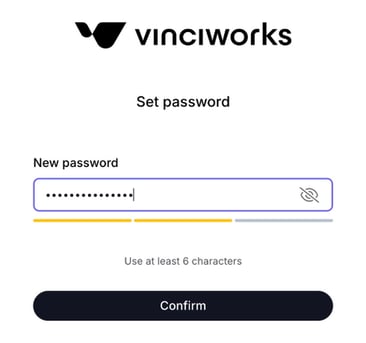
- Click Confirm.
Set up your authenticator app
If your organisation uses multi-factor authentication (MFA), a setup window opens after you set your password.
- Click Next.
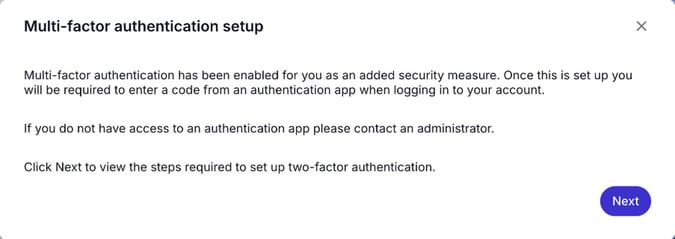
- On your phone, open an authenticator app, such as Google Authenticator or Microsoft Authenticator. No app yet? Download one first.
- In the app, add a new account and scan the QR code. Can't scan it? Enter the text code instead.
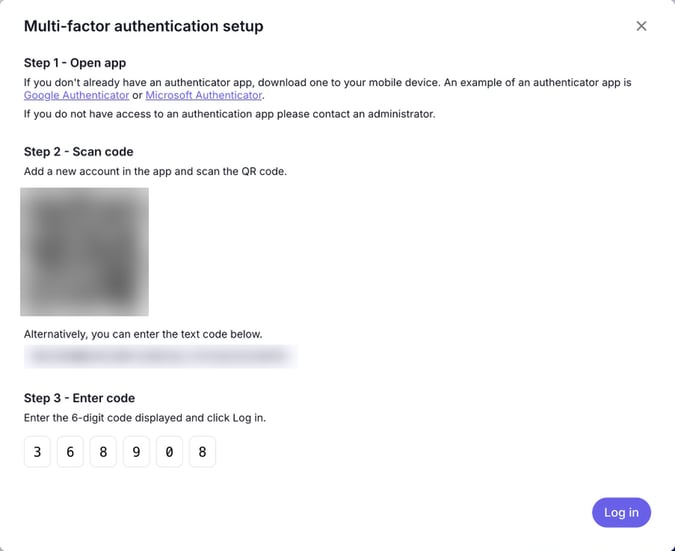
- Enter the 6-digit code the app shows.
- Click Log in.
Note: If you can't use an authenticator app, contact your Portal admin before you go any further.
Log in with your code
- Go to your organisation's Portal login page.
- Enter your email address.
- Click Next.
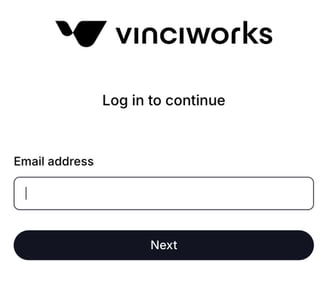
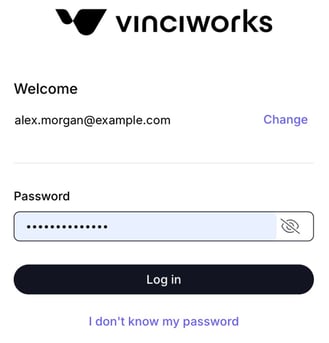
- Enter your password.
- Click Log in.
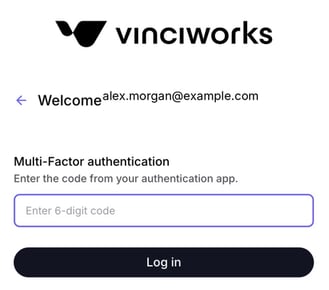
- Enter the 6-digit code from your authenticator app.
- Click Log in.
Something isn't working?
I've lost my phone or changed phones
Ask your Portal admin to turn off MFA for your account. If you're the admin, contact support.
My account is locked
Your account locks after too many wrong codes. Contact support and say which email address you log in with.
Related articles: Turning multi-factor authentication on or off