
Quick answer: To turn on multi-factor authentication (MFA) for everyone, go to Users, open User settings, choose Multi-factor authentication and turn on the switch. To turn it off for one person, find them in Users, click the three dots at the end of their row and choose Disable MFA.
Turn on MFA for everyone
- Click Users.
- Click User settings (top right).
- Click Multi-factor authentication.
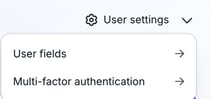
- Turn on the switch.

- Click Confirm.
Everyone sets up MFA the next time they log in. Setting up your account and logging in
Turn off MFA for one person
Do this when someone can't use their authenticator app, for example after losing their phone.
- Click Users.
- Search for the person.
- Click the three dots at the end of their row.
- Click Disable MFA.
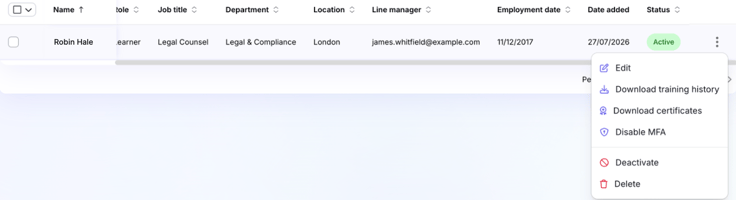
- Click Confirm.
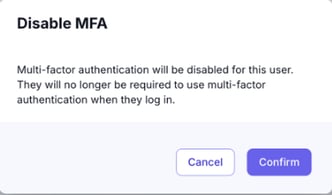
They can now log in without a code.
Something isn't working?
I can't see Disable MFA
It only shows when MFA is turned on for your organisation. If MFA is off, nobody needs a code to log in.
I can't see User settings
Ask support to check your access.
Related articles: Setting up your account and logging in