
Quick answer: Check the learner is active and their username is right. Then set a new password for them from the Learners page.
Check they're active
- In the menu (top right), search for Learners and open it.
- Change the list from Show Active to Show Inactive and search for them.
- If they're there, switch the Active toggle back on. It saves straight away.
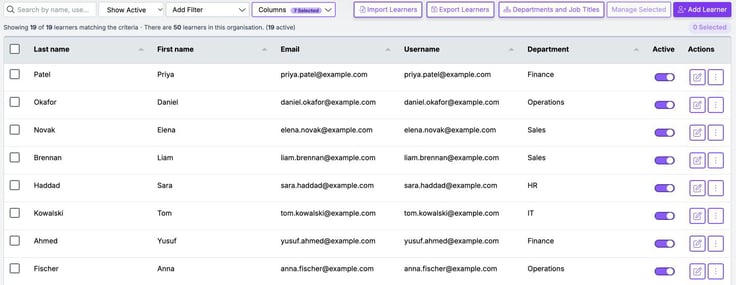
Check their username
- Click the pencil on their row.
- Check the Username. It's exactly what they need to type, with no spaces before or after it, and it isn't always their email address.
Set a new password
- Click the pencil on their row.
- Enter a new password that meets the organisation's password rules.
- Tick Force password change, so they choose their own password when they log in.
- Click Save.
- Tell the learner the new password. Astute doesn't send it to them.
Tip: Active learners can reset their own password with Forgotten Password on the login page. It needs a real email address on their record, and the reset page also shows their username.
Something isn't working?
Your organisation signs in with single sign-on (SSO)
Learners use their company SSO login, not an Astute password. If one person can't get in:
- Confirm they are logged in internally to their SSO provider account
- Clear the cache
- Try again
If several can't, or they see an error page from the Astute sign-in server, contact support with a screenshot.
They're stuck on the two-factor code
This can happen after they get a new phone. In the menu, search for Password and 2FA Reset, find the learner and click Reset 2FA.
They typed the wrong two-factor code five times in a row
Their account is locked, and it shows as Wrong 2FA codes on Password and 2FA Reset. It stays locked until an admin clicks Unlock or Reset 2FA on their row. Waiting or resetting their password won't unlock it.
They never got their welcome email
It's only sent once, when the learner is created, and only if a welcome email is switched on. To see what they've been sent, click the three dots on their row, then View Progress, and open the Emails tab. Give them their username and set a new password as above.
They need a new reset link
If their link has expired or was already used, the Reset your password pop-up says so. They click Send a new link.
The reset email isn't arriving
Check the email on their record is right, then ask them to look in their spam folder. If it still doesn't come, set a new password for them and contact support, so they can check why.
They typed the wrong password too many times
Astute locks them out for a set time, then they can try again. To let them in sooner, search the menu for Password and 2FA Reset and find the learner. Their row shows whether they're locked out, with Unlock if they are. The number of tries and how long the lock lasts are set in Organisation Settings: search the menu for it and open the Security Details tab.
They keep getting deactivated
Check their Leave Date. A date that has passed deactivates them overnight. If learners come from an HR system or user sync and are still active on that feed, the feed overrides manual changes made in Astute.
Related articles: Editing a learner's details · Adding and enrolling a new learner