
Quick answer: Add the learner on the Learners page, then enrol them in one of two ways: use the Enrolled On field at the end of the Add Learner page or add them to the enrolment event on the Enrolment Events page.
If enrolment rules are set up, fill in every field the rules use (for example, department). Otherwise the rules won't pick up the learner.
Add the learner
- In the menu (top right), search for Learners and open it.
- Click Add Learner.
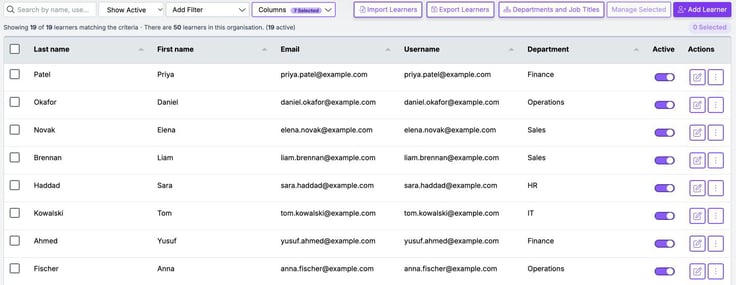
- Enter their details:
- First name and last name
- Email and username (no other learner can have the same email or username)
- Password
- Language
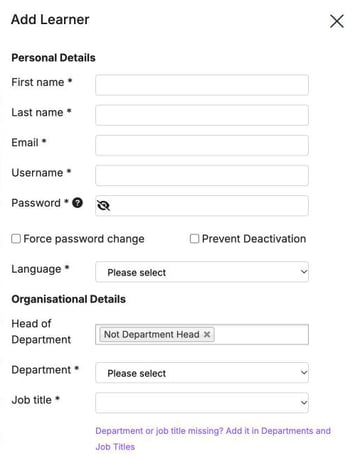
- Tick Force password change so they choose their own password when they first log in.
- Choose their Department and Job title. Missing one? Click the link under the list to add it in Departments and Job Titles.
- To enrol them straight away, choose their training in Enrolled On.
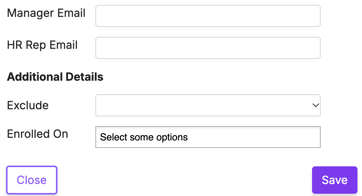
- Click Save.
Tip: Adding lots of learners? Add them all at once from a spreadsheet. See Importing learners from a file
Enrol them in training
- In the menu (top right), search for Enrolment events, open it and click Edit on the event.
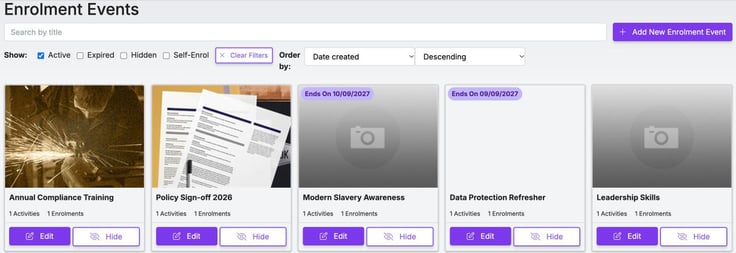
- Click Learners, then Add Learners.
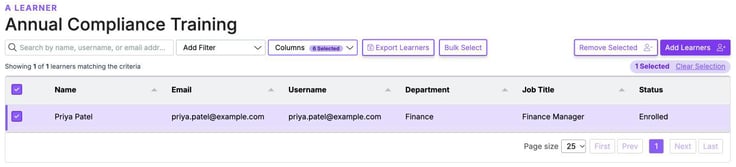
- Search for the learner by name, username or email, tick them and click Add selected learners.
- Click Confirm Changes, then Action Changes.
Important: Until you click Action Changes, the learner stays at Pending and isn't enrolled.
Tip: Adding lots of learners to one event? Use Bulk Select with their usernames or emails (not names). It lists anyone it couldn't match.
If the event enrols learners automatically with rules, a new learner who matches is picked up overnight. See Enrolling learners automatically with rules
Something isn't working?
They're still showing as "Pending", even after "Action Changes"
The event's start date, or the learner's own Start Date, is in the future. They stay in Pending status until the date passes.
They didn't get an enrolment email
The enrolment email is sent when a learner is enrolled, as long as it's switched on. If the enrolment event starts in the future, the email goes out when the event starts (UK time) instead. To see which emails a learner has been sent, go to the Learners page, click the three dots on their row, select View Progress, then open the Emails tab. The enrolment email can't be resent from Astute. Don't remove the learner and add them again to trigger it, because this can affect their records. Instead:
- Contact the learner yourself, or
- If several learners didn't get it, contact support so they can find out why
Related articles: Editing a learner's details · A learner can't log in