
Quick answer: After a class has taken place, open it from the Training Schedule, click Complete attendance and mark each learner, then confirm the register to update their statuses.
Open the attendance register
- In the menu (top right), search for Instructor-led Training and open it.
- Open the Training Schedule tab and click the class.
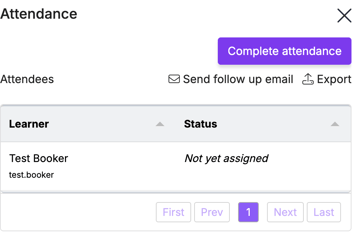
- Click Manage Attendees to open its attendance list.
Mark each learner
- Click Complete attendance to start the register.
- For each learner, choose Attended or Did not attend.
- If the course has an exam, choose Passed, Failed or Did not attend instead. You can also enter a score.
- If an external provider gave a certificate, click Upload certificate to store it in Astute.
- To add someone who came but wasn't on the list, search for them under Add attendee and click the + icon.
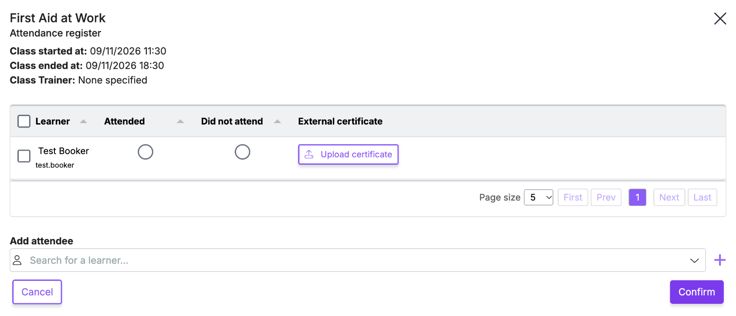
- Check the class details are right, then click Confirm to submit the register.
Important: Once you confirm, the class is locked apart from its name: its dates, times, trainer, place and lesson type can't be changed. Learners' marks aren't locked, so you can still change them. Confirming can also email learners, such as completion, pass, fail or did-not-attend emails. Check your settings under Email Management on the Instructor-led Training page first.
Learners' statuses then update. Attendance is recorded for the class, not for each module.
To download the register, click Export.
Email attendees afterwards
- Once the register is done, click Send follow up email.
- Under Send to learners who, choose who gets it, such as Did not attend.
- Write the Subject and Body. You can add merge fields, such as the attendee's first name, and attachments.
- Click Send Email.
Something isn't working?
A learner's course still shows as not complete
Check that the attendance register for that class has been confirmed, and what the learner was marked as.
I can't mark attendance yet
The register opens once the class has finished, after the date of every module has passed. Until then, Manage Attendees shows the attendees and any requests instead.
A learner who attended isn't on the list
Search for them under Add attendee and add them before you confirm.
I gave a learner the wrong mark
Open the class on the Training Schedule, click Manage Attendees, then Complete attendance again. Change the mark and click Confirm.
Related articles: Scheduling an instructor-led training class · How do I enrol learners on instructor-led training?