
Quick answer: In Courses, open Learning plans and click Create new learning plan. Answer a few questions about your training needs, and the builder suggests courses for you to fine-tune, download or assign.
Start a learning plan
- Click Courses.
- On the left, click Learning plans.
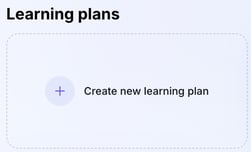
- Click Create new learning plan.
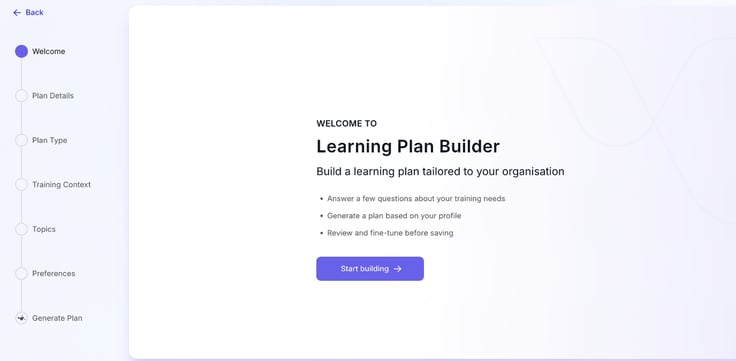
- Click Start building.
Answer the questions
The builder takes you through these steps:
- Plan Details: give the plan a name, and a description if you like.
- Plan Type: choose a one-off plan or an annual plan, and how many years it runs.
- Training Context: choose your industries and jurisdictions. This step only shows if your organisation has more than one industry or jurisdiction to choose from.
- Topics: choose your topics and any sub-topics. Twelve or fewer works best.
- Preferences: if asked, choose who the plan is for, such as managers. Then say how much time you have for training and how much each topic gets.
When you're done, click Generate my plan.
Fine-tune your plan
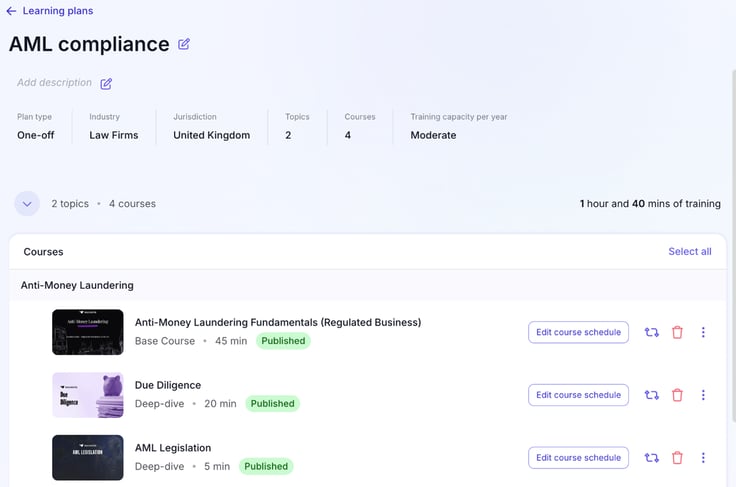
Your plan opens when it's ready. You can find it again under Courses > Learning plans.
- Courses are grouped by topic, with the total training time at the top.
- Click the swap icon to replace a course, or the bin icon to remove it.
- To add a course, find it in the panel on the right and click +.
- Click Edit course schedule to delay a course, or lock it until learners finish another one.
Use your plan
- To share it, click Download and choose Download CSV or Download PDF.
- To give it to learners, click Create assignment. Creating and editing assignments
- If you run courses on your own LMS instead, click Publish all.
If the plan has courses you haven't published yet, you're asked to publish them first.
Something isn't working?
I can't see "Learning plans"
Ask support to check your access.
Related articles: Creating and editing assignments · Publishing courses