
Quick answer: Open a draft course in Courses and click Publish, or tick several course cards and click Publish in the bar at the bottom. Publishing makes your edited version available on your LMS and ready to download.
Publish one course
- Click Courses.
- Click the course. Courses with unpublished changes show Draft.
- Click Publish.
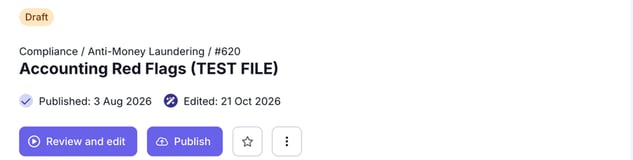
- Add a note about your changes, if you like.
- Click Publish.
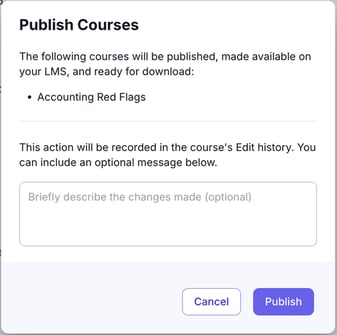
The publish is recorded in the course's Edit history.
Publish several courses at once
- In Courses, tick the box in the top left of each course card.
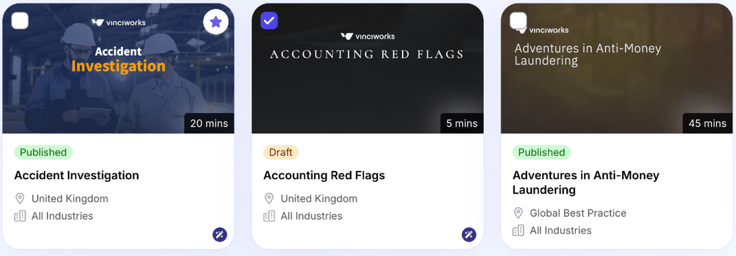
- In the bar at the bottom of the page, click Publish.

- Check the list of courses, and add a note if you like.
- Click Publish.
Use the courses on your own LMS
The Portal's SCORM packages always load the latest published version, so courses already on your LMS update by themselves when you publish. You only need to download a course to add it to your LMS for the first time, or to replace an older package. The confirmation message has a download option, and publishing several courses at once downloads them as one zip file.
Something isn't working?
I can't see Publish
The course has no unpublished changes, or you don't have access. If it shows Draft, ask support to check your access.
Related articles: Editing course content · Duplicating courses