
Quick answer: Open the course in Courses, click the three dots, choose Duplicate course, give the copy a title and click Duplicate. Then edit the copy.
Duplicate a course
- Click Courses.
- Click the course you want to copy.
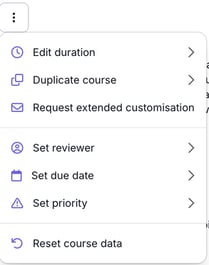
- Click the three dots next to Review and edit.
- Click Duplicate course.
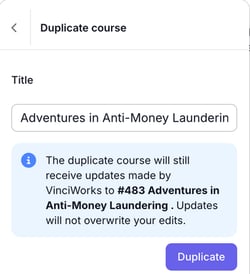
- In Title, give the copy a name that says what it's for.
- Click Duplicate.
- When the message says the copy is ready, click View to open it.
Now edit the copy. Editing course content
Note: The copy still gets any updates made to the original course. Those updates don't overwrite your edits.
Find or delete your copies
- To see only your copies, click Duplicates at the top of Courses.
- To delete a copy, open it, click the three dots and click Delete duplicate.
Important: Deleting a copy also deletes the edits you made in it.
You can also hover over a course card to reach its three dots without opening the course.
Something isn't working?
I can't see Duplicate course
Duplicating courses is part of enhanced editing, which most organisations have. Ask support to check your access.
Related articles: Editing course content · Publishing courses