
Quick answer: Open a learner's profile and go to the My Competency tab to see their record. To see everyone at once, build a view in List All Users with the Competency columns, or run a CCM report.
Check one learner
- In the menu on the left, select Users, then List All Users.
- Click the learner's profile icon.
- Open the My Competency tab.
It shows their learning needs, the activities they've planned and completed, their reflective statements, each need's status, and their annual declaration.
See everyone at once
- In List All Users, choose the year in Select Accreditation Year.

- In Select View, choose Create a new view... and click OK on the message.
- Right-click any column heading, then select Columns.
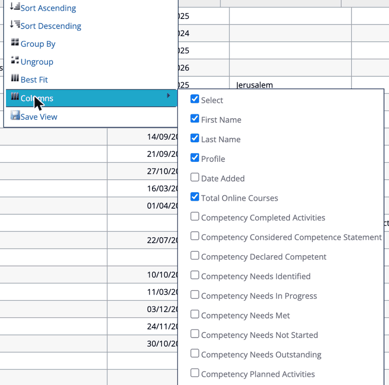
- Tick the Competency columns you want, such as:
- Competency Needs Identified
- Competency Needs Met
- Competency Needs Outstanding
- Competency Declared Competent
- Right-click a column heading again and select Save View.
Views are shared across your account, so every admin can use the same one.
For a list you can download or have emailed to managers, use a report instead. See Running and scheduling CCM reports.
Something isn't working?
A learner has finished but shows as not done
Each need only counts as met when the learner sets its status to "Completed". They also need to tick the annual declaration. Ask them to check both.
A learner shows no CCM at all
Check SRA Continuing Competence is ticked on their record. See Giving users access to the CCM.
Related articles: What is the Continuing Competence Module (CCM)? · Running and scheduling CCM reports