
Quick answer: In Reports, click Create Custom Report and choose Competency - progress by user or Competency - all needs. Pick your columns, then view the report or save it to be emailed on a schedule.
Pick the right report
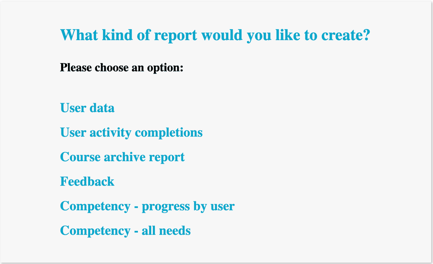
- Competency - progress by user: each learner's needs, activities and declaration. Use it to see who's on track.
- Competency - all needs: every learning need entered in the CCM, with its status and reflective statement. Use it to spot common gaps.
CCM reports show CCM activity only, not course completions.
Run a report
- In the menu on the left, select Reports.
- Click Create Custom Report.
- Choose Competency - progress by user or Competency - all needs.
- Choose a Timeframe, such as This Competency Year or Last Competency Year.
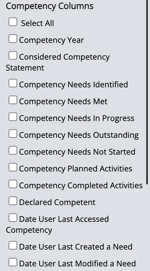
- Tick the columns you want under Competency Columns (or Need Columns) and User Columns.
- In View Report, choose Preview, Open in MS-Excel or Open in MS-Word.
- Click View Report.
Add a filter under Filter Report if you only want one department or office.
Schedule a report
Follow steps 1 to 5 above, then:
- Under Schedule Report Mailout, choose Send every (a day of the week) or Send each month on day.
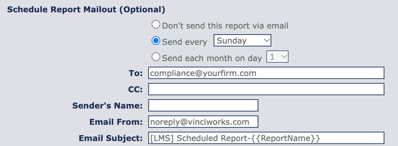
- Enter the email addresses in To and CC.
- Click Save as Custom Report.
Your saved report appears under Your Reports, where you can view, edit or delete it.
Something isn't working?
The report is empty
Check:
- The Timeframe covers the right CCM year (1 November to 31 October)
- Your learners have SRA Continuing Competence ticked
- Learners have started using the CCM this year
Course completions are missing from the report
CCM reports only show CCM activity. Use a training report for course completions.
Related articles: Checking learners' CCM progress · What is the Continuing Competence Module (CCM)?