
Quick answer: In List All Courses, click the number under Users Not Started for the course. Tick the users, choose Send Email, and edit the New User Welcome Message template into a reminder.
Nagware is a feature available in VinciWorks LMS Professional that allows administrators to send automated reminders to users who have not completed their training.
If Nagware is not licensed, you can still send reminders manually using the email function within the LMS.
This method is suitable for occasional reminders or small groups of users. However, it requires manual effort and does not provide the automation, scheduling or escalation features available with Nagware.
When should you use this method?
This approach is useful when:
- You need to send a one-time reminder to users
- You do not have Nagware licensed
- You are managing a small number of users
- You need to send an urgent reminder immediately
For ongoing or automated reminders, use Nagware.
See What is a nag?
Open the course user list
- From the menu on the left side of the page, select Online Courses, then click List All Courses.
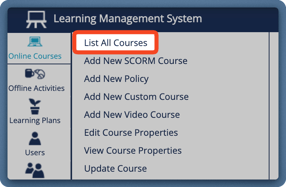
- Locate the course you would like to send reminders about.
- In the Users Not Started column, click the number shown for that course. This opens a list of users who have not yet started the course.
Tip: To remind learners who have started but not finished, click the number in the Users In Progress column instead, then follow the same steps.
Select the users to remind
- In the new window, tick the box to the left of First Name. This selects all users in the list. You can also select individual users if you only want to remind specific people.
Open the email window
- In the Select an Action box in the top right of the page, choose Send Email and click Go. This opens the email configuration window.
Choose an email template
- Under the To: field, select Use Existing Template.
- Choose a template to start from. User: New User Welcome Message is a good starting structure for reminder emails.
Edit the reminder message
- Update the email text so that it reads as a reminder rather than a welcome message:
- Change the subject line
- Adjust the message wording
- Keep the login details intact
Important: Do not change , or . These fields are filled in automatically by the system and let users log in to the LMS. You can change the surrounding text as needed.
Send the email
- When you've finished, click Submit at the bottom of the page. The reminder email will be sent to the selected users.
What are the limits of this method?
This manual process:
- Does not send reminders automatically
- Does not repeat reminders
- Does not escalate reminders
- Requires administrators to run the process each time
For regular reminders, automated scheduling or compliance tracking, Nagware is the recommended solution.
Related articles: What is a nag?