
Quick answer: In Nagware, add a new nag for users who haven't completed a course after a set number of days. Set the End Date to the same day as the Start Date, and Number of Emails and Interval to 1.
One-off nags allow you to send a single reminder email to users who have not completed a course.
This type of nag is useful when you want to send one prompt without continuing reminders, for example, as a final reminder before a deadline or as a gentle follow-up after a training rollout.
A typical use case might be:
- Send one reminder 14 days after enrolment
- Do not send any further reminders
- Allow administrators to review completion manually afterwards
Before you begin
Nagware is a feature of VinciWorks LMS Professional. If you don't see Nagware in your menu, ask support to check your access.
Set up the nag
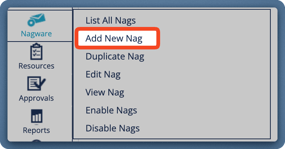
- From the menu on the left side of the page, select Nagware, then click Add New Nag.
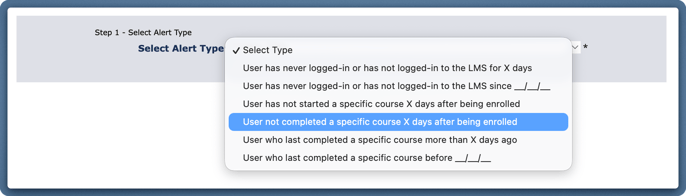
- Under Select Alert Type, choose User not completed a specific course X days after being enrolled.
- Enter the details:
- Nag Name: a clear, descriptive name that makes the purpose of the nag easy to recognise later, for example, "GDPR: One-Time Reminder", "Code of Conduct: Final Reminder" or "Anti-Money Laundering: Single Follow-Up". Clear naming makes it easier to manage reminders later.
- Number of Days: how long after enrolment the reminder is sent. For example, with 14, users who haven't completed the course within 14 days of being enrolled get the reminder.
- Select Course: the course the nag should monitor. The nag only applies to users enrolled on this course.

- Set the sending instructions:
- Start Date: the date the nag becomes active. Set it for tomorrow or later, never today.
- End Date: the date the nag stops running. To send the reminder once only, set the End Date to the same date as the Start Date.
- Number of Emails and Interval: Number of Emails controls how many times this nag's email is sent to each user, and Interval controls how many days apart. For a one-off nag, set both to 1, so the reminder is only sent once.

- (Optional) Leave the filter blank to remind everyone enrolled on the course who hasn't completed it. To send the nag only to some users, such as one office or department, select the field under Include, choose a Condition, select the Value and click Add.
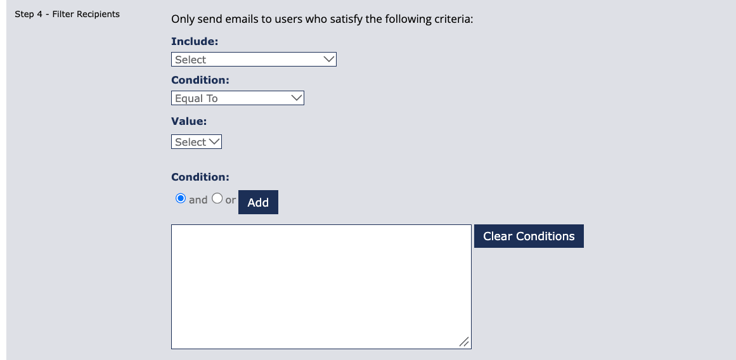
Important: The filter will not be applied unless you click Add. To change a filter later, click Clear Conditions and create it again.
- Enter the email details:
- Email Sender's Name: the name that appears as the sender. Use one users will recognise, such as Compliance Team, HR Department or Learning and Development.
- Email From: the address the reminder is sent from. This should usually be a monitored mailbox or shared team address.
- Email CC: (optional) anyone who should get a copy of the reminder. Separate multiple addresses with a semicolon, for example, manager@company.com; hr@company.com.
- Email Subject Line: keep it clear and direct, for example, Final Reminder: Training Outstanding.
- Email Body: the message users will receive. Include enough for them to complete the course straight away: the LMS login link, their username and how to reset their password. Use Insert Variable Data to add (the LMS website address) and (the user's username).
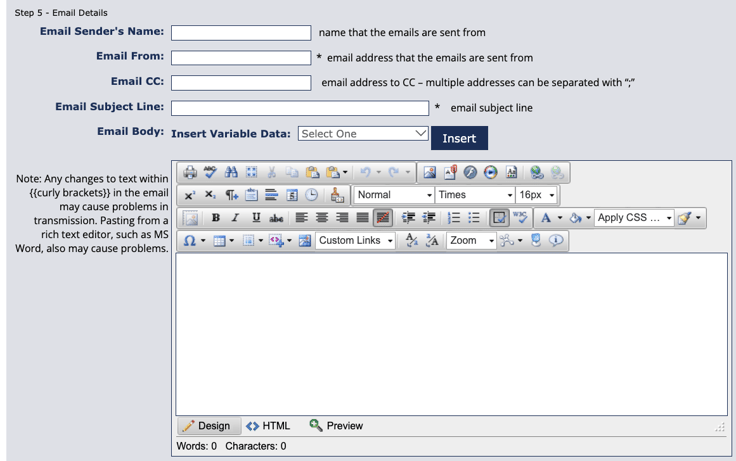
Important: Avoid changing text inside curly brackets, as these are system variables.
- Click Submit at the bottom of the page to save the nag.
Related articles: What is a nag? · Setting up a repeating nag · Setting up an escalating nag