
Quick answer: In Assignments, click View on the assignment, then click the three dots at the end of the learner's row and choose Resend email.
This article is for organisations using Portal Assignments.
Resend the email to a learner
Use this when a learner tells you they didn't get the email about their training. It sends them the same email they got when the training was first assigned, with a link to view it.
- In the top menu, click Assignments.
- Find the assignment and click View at the end of its row.
- On the Learners tab, find the learner.
You can use the search box above the list to search by name or email.
- Click the three dots at the end of the learner's row and choose Resend email.
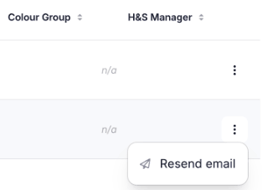
- In Resend course-assigned email, check the learner's name and email address, then click Resend email.
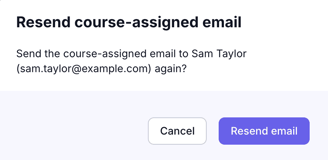
A green "Email on its way" message confirms the email has been sent.
Note: Resend email sends to one learner at a time. Repeat the steps for each learner who needs it.
Something isn't working?
The learner still hasn't received the email
Check the email address under their name on the Learners tab. If it's wrong, update it in Users (see Adding and editing users), then resend the email. If it's right, ask the learner to check their spam or junk folder.
I can't see the three dots on a learner's row
You can only resend the email on active assignments. Assignments under Past Due don't have this option.
I can't find the assignment
Long lists show only the first few assignments in each section. Click the "Show" link under the list (for example, "Show 9 more") to see the rest.
Related articles: Creating and editing assignments