
Quick answer: Select Users, then Bulk Add Users. Download the template, fill in one row per user, save it as a .CSV file and import it.
Add multiple users to the system at once by uploading a spreadsheet file. This is useful when onboarding new starters, migrating users from another system, or setting up a large group of learners.
Download the template
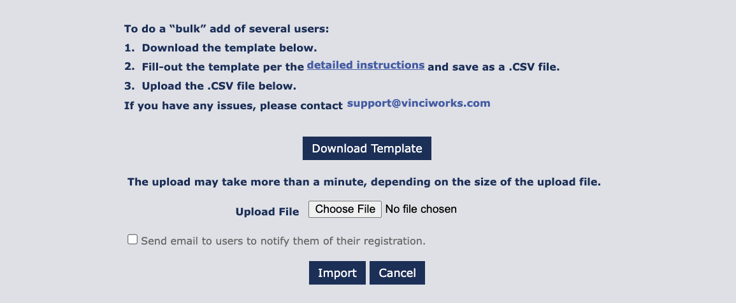
- From the menu on the left side of the page, select Users, then click Bulk Add Users.
- Click Download Template to download the spreadsheet.
Fill in the spreadsheet
- Open it in Microsoft Excel and fill in a row for each user you want to add.
Every user needs:
- UserLoginName: the username they log in with
- UserFirstname: their first name
- UserLastname: their last name
- UserEmail: their email address
- UserRole: 1 for Learner or 3 for Administrator
Every other field is optional, unless your organisation needs it.
These are the ones used most for reporting and filtering:
- UserJobTitle: their job title
- UserDepartment: their department
- InternalFirmID: an employee ID or internal reference number
- CountryId: a country code (for example, 223 for United Kingdom)
- Accreditations: turns on accreditation tracking where needed
Tip: Don't delete the header row, don't use commas anywhere in the data, and give each user their own username and email address.
- When you're done, save the file as a .CSV file on your computer.
Upload the file
- From the menu on the left side of the page, select Users, then click Bulk Add Users.
- Click Choose file, select the saved file and upload it.
- (Optional) Tick Send email to users to notify them of their registration if you want users to get their login details automatically. If you don't tick this, the users are still created but don't get an email.
- Click Import. A large file can take more than a minute.
Something isn't working?
The upload fails
Check:
- The file is saved as a .CSV file
- The header row is still there
- There are no commas in the data
- The required fields are filled in
- Every username is different
If it still fails, contact support.
Related articles: Adding a new user